How to activate your ZiggSend license
The key arrives in the welcome email (from send@ziggsend.com) and shows on the confirmation page right after purchase. It starts with ZS1. and has three dot-separated blocks: copy all of it, including the end.
On Windows
- Open ZiggSend
The home screen says “Ready to receive”. The footer shows your plan: “Free plan” (or “License” once activated).
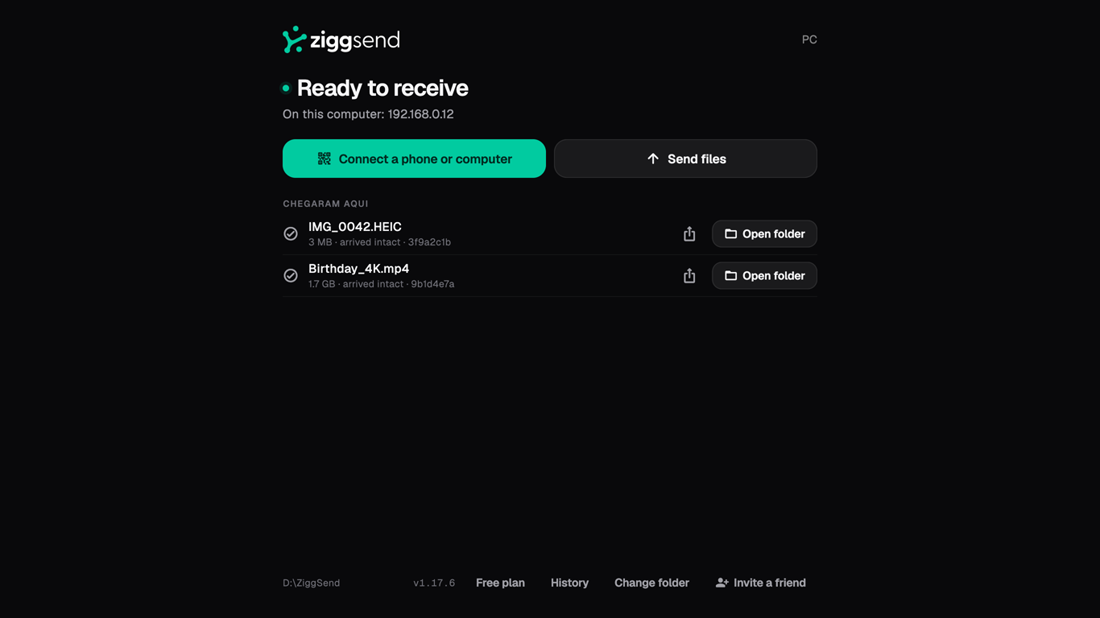
- Click the plan label in the footer
It is the button at the bottom. It opens the license screen.

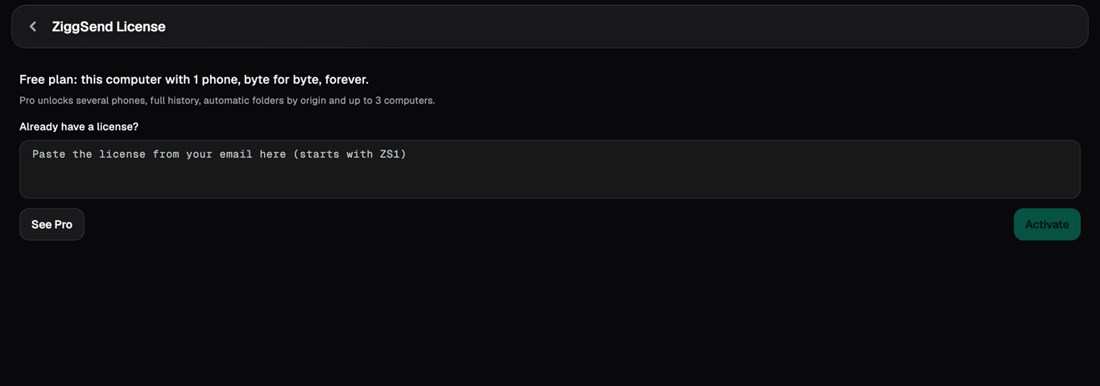
- The license screen
At the top, your current plan (“Free plan: this computer with 1 phone…”) and the “See Pro” button. Below, the “Already have a license?” field.
- Paste the key
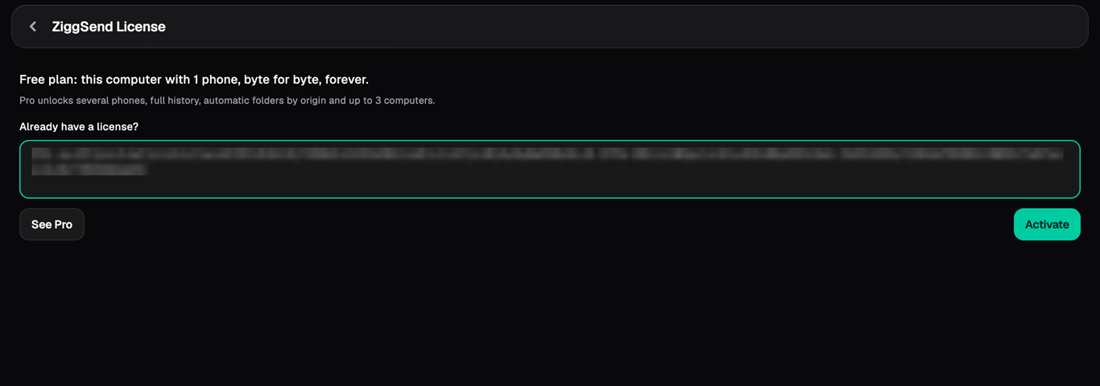
Paste the whole key into “Paste the license from your email here”. The Activate button lights up.
- Click Activate
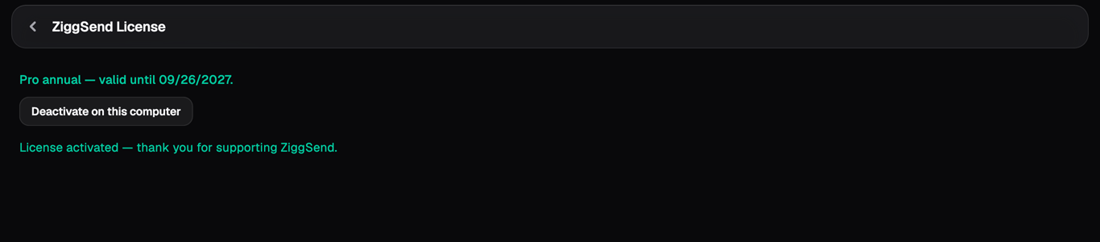
You need internet at this moment: ZiggSend registers this computer (up to 3 per license). You see “License activated — thank you for supporting ZiggSend” and your plan (“Pro annual — valid until…” or “Lifetime Pro — forever means forever.”).
- Done
Back on the home screen, the footer now reads “License”. Transfers continue as usual.

On Mac
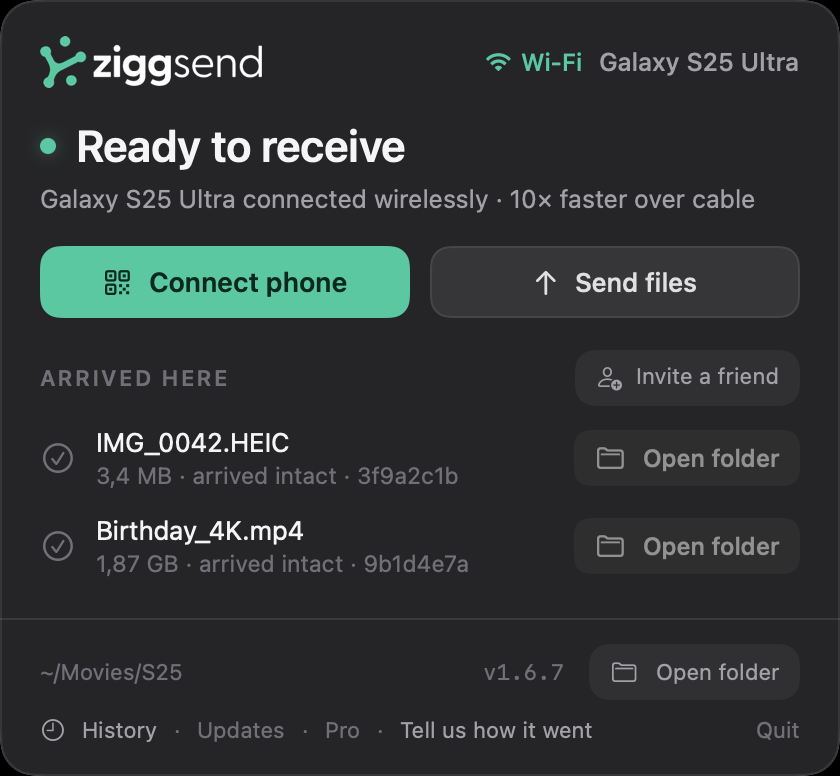
- Open the panel from the menu bar icon
ZiggSend lives in the Mac menu bar. Click the icon: the panel says “Ready to receive” and the footer shows your plan, “Free · 1 phone” or “Pro”.
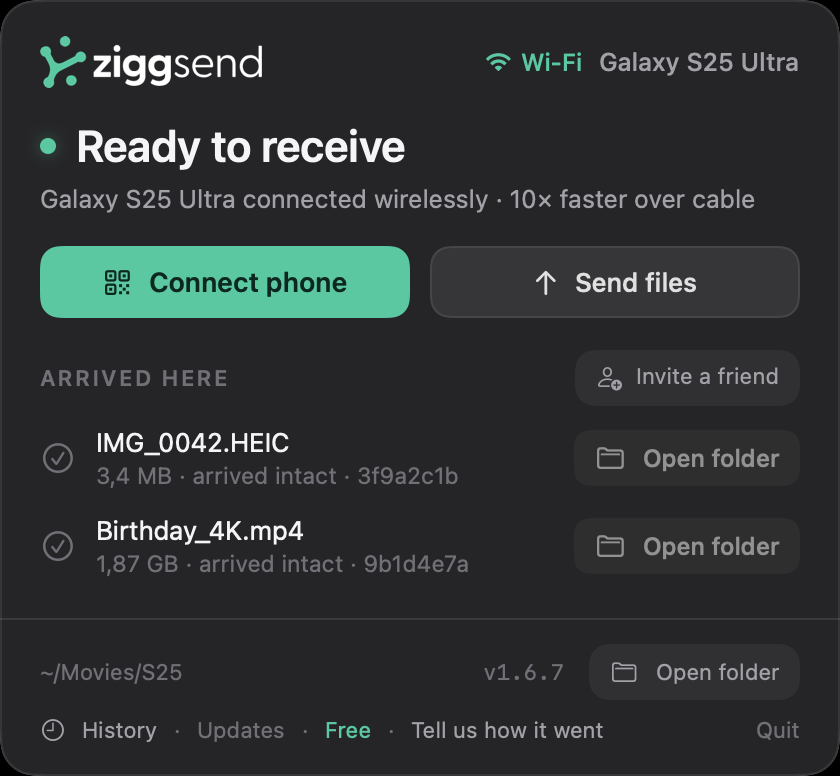
- Click the plan label
It opens the “ZiggSend License” window, separate from the panel. At the top, your current plan and the “Buy” button; below, the “Already have a license?” field.
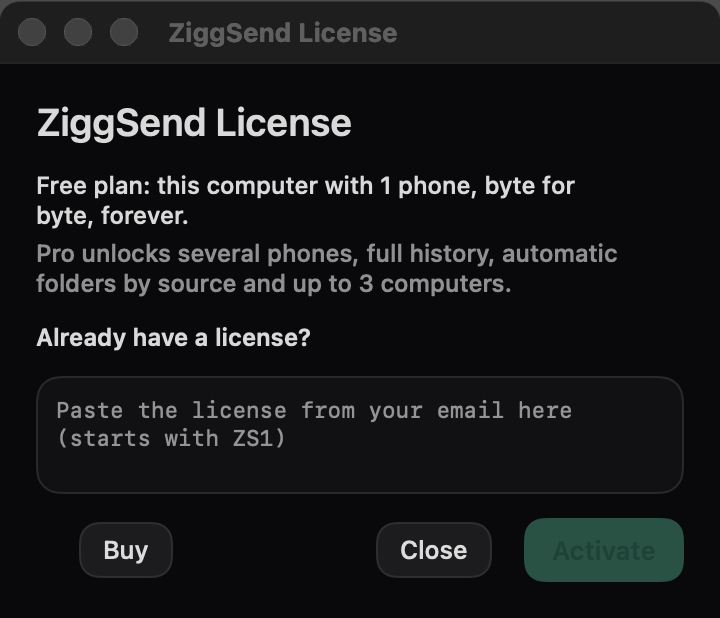
- Paste the key
Paste the whole key into “Paste the license from your email here” and click Activate. You need internet at this moment: ZiggSend registers this computer (up to 3 per license).
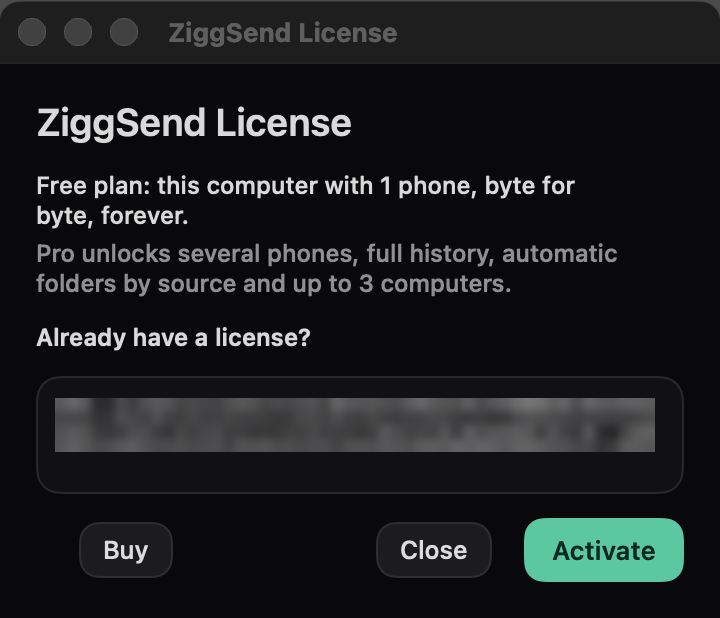
- License activated
You see “License activated — thank you for supporting ZiggSend”. Close the window.
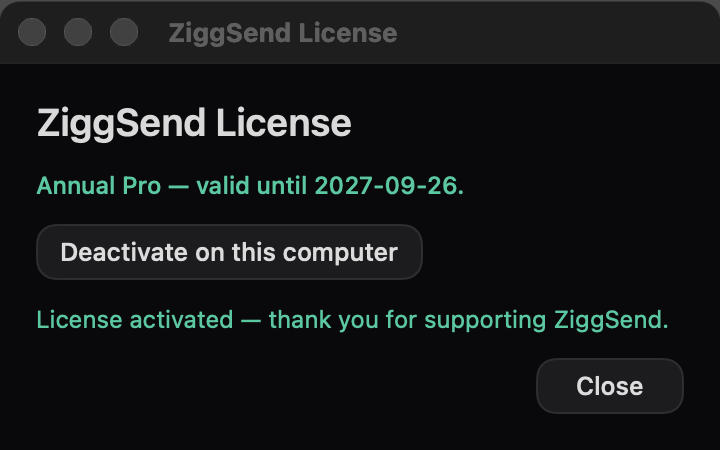
- Done
The panel footer now reads “Pro”. You can close it: ZiggSend stays in the menu bar receiving files.
Activation questions
It says “That doesn't look like a license”
Part of it is missing. The key starts with ZS1. and has three dot-separated blocks; select the whole key in the email, end included, and copy it.
It says “This license wasn't issued by ZiggSend”
The key changed while being copied (a space or line break in the middle). Paste it again straight from the email, or request a fresh one at ziggsend.com/licenca.
It says “This license is already active on 3 computers”
On one of them, open the license screen, click “Deactivate on this computer” and activate again. Replaced a machine and no longer have the old one? Free them all at once at ziggsend.com/licenca.
It says “Connect to the internet to activate”
Activation registers the computer with our server, so it needs internet at that moment. After that the app works offline, but it needs to connect at least once every 30 days.
How many computers can I activate?
Up to 3 computers, Mac and Windows, with the same key. Phones need no license.
I bought it but didn't get an email
Check spam. If you closed the confirmation page before the key showed up, open ziggsend.com/obrigado in the same browser: it remembers your purchase until the key is shown. If nothing shows, request it at ziggsend.com/licenca with your purchase email.