Any file, phone to computer,
in seven short steps.
Install once, connect once, then it is tap and done. Every label below is the real button in the app, so you can follow along on your screen.
1 Install on both sides
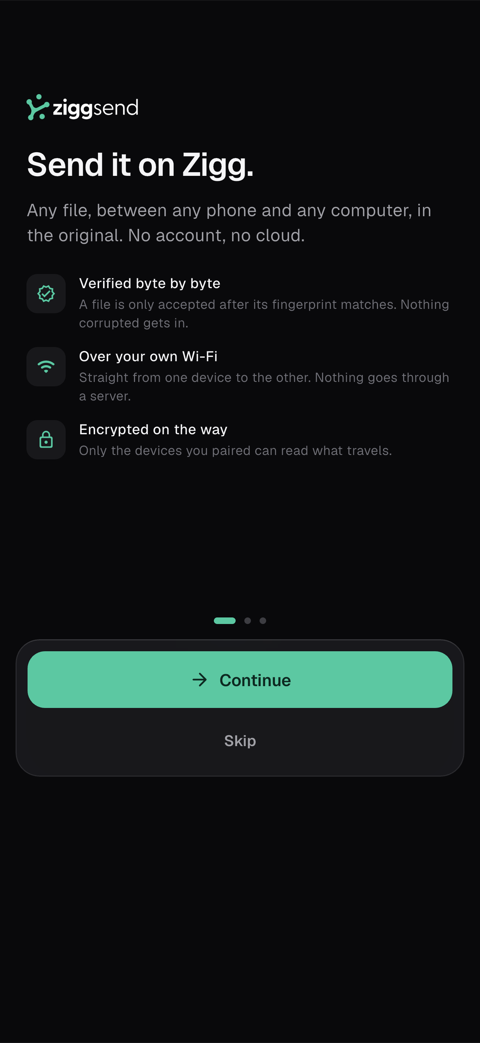
ZiggSend is two apps that talk to each other on your own Wi-Fi. Nothing goes through a server.
- Computer: Download for Mac (macOS 14 or newer) or Get it from the Microsoft Store (Windows 10 1809+ / 11).
- Phone: App Store (iOS 15+) or Google Play (Android 7+).
- No account, no sign-up. The computer app starts on the Free plan.
2 Connect the two
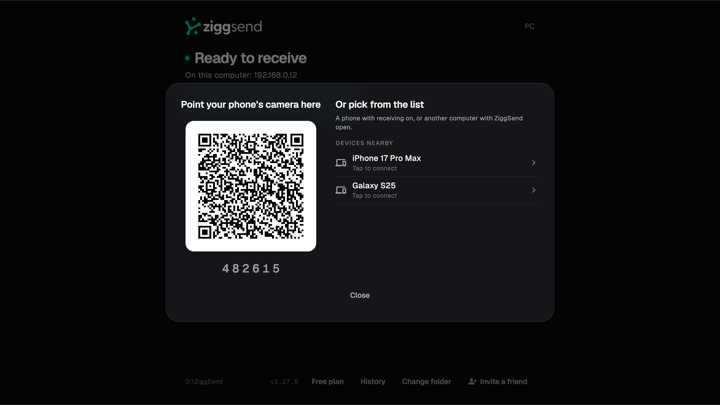
On the computer, click “Connect a phone or computer”. On Windows, a window shows the QR code on the left and the “Devices nearby” list on the right; on the Mac the button is “Connect phone” and shows only the QR code.
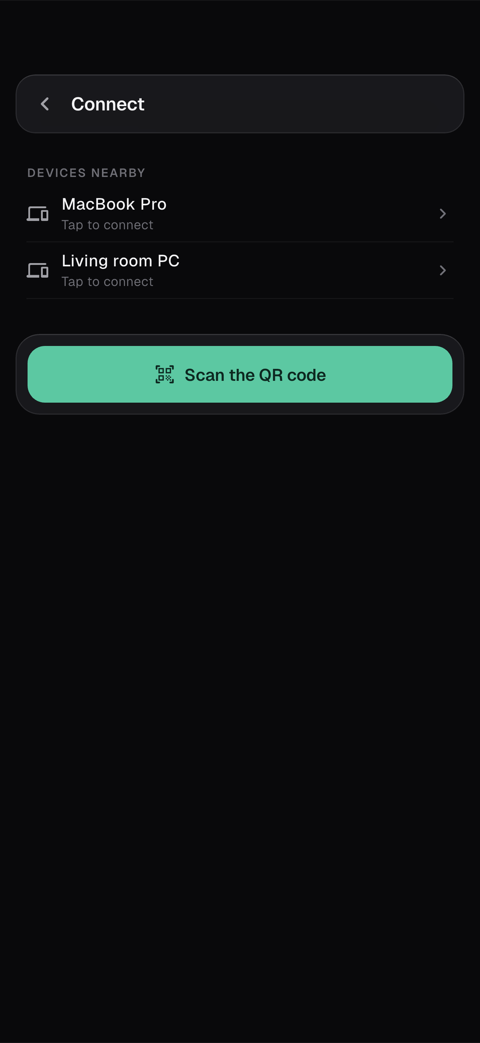
- On the phone, tap “Connect to a computer”: the “Devices nearby” list opens. Tap the computer’s name — or tap “Scan the QR code” and point the camera at the QR code.
- Both screens show the same security code (8 groups of letters and numbers). If they match, click “Allow” on the computer. If not, “Deny” (on the Mac, “Decline”).
- Done once. On the same Wi-Fi the devices find each other again by themselves, no QR needed.
3 Send from the phone
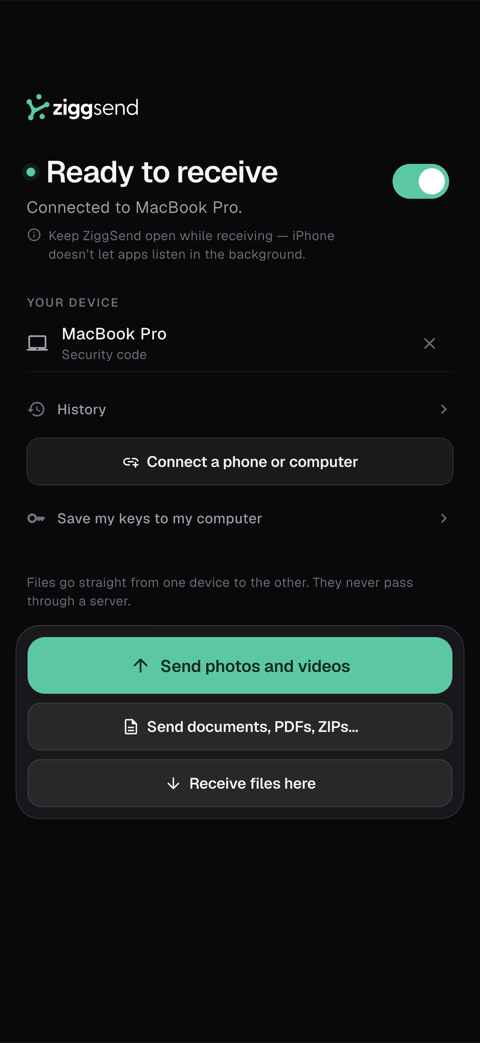
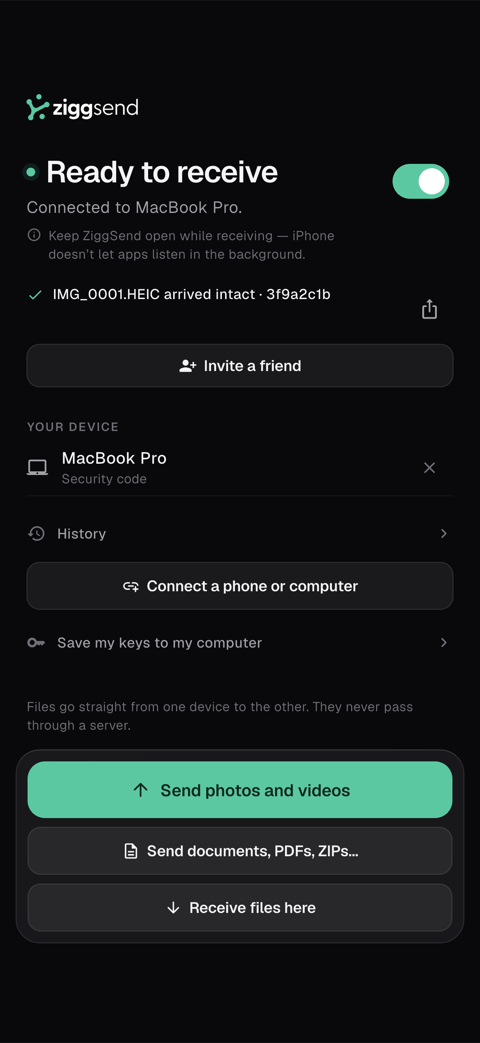
Tap “Send photos and videos” for the gallery, or “Send documents, PDFs, ZIPs…” for anything else. Pick as many as you like.
- Files land in the folder shown in the app’s footer: on Windows, the one you chose; on the Mac, by default a ZiggSend folder inside Movies — click it to choose another. On Pro, each source gets its own subfolder automatically.
- Every file is checked byte for byte on arrival; anything that fails is discarded and flagged. In every app, History lists each file with its fingerprint.
- Under the receipt: “Invite a friend” opens the share sheet with your link.
4 Send from the computer
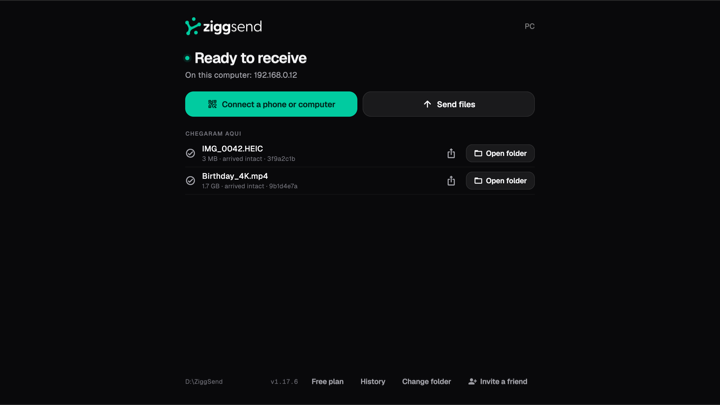
Drag files or folders onto the window on Windows or onto the panel on the Mac (on the Mac, onto the menu-bar icon too), or click “Send files”.
- Folders go whole, subfolders included, and the files arrive together in one folder (the folder tree isn’t recreated); the receipt says how many files from how many folders.
- Photos and videos go to the phone’s gallery; everything else to the ZiggSend folder in Files (iPhone) or Downloads (Android).
- iPhone: keep ZiggSend open on screen while receiving — iOS doesn’t let apps listen in the background.
5 Phone to phone
Android to iPhone, iPhone to Android, or two of the same system — it works without a computer.
- On the phone that receives, tap “Receive files here”: it shows a QR code.
- On the other phone, tap “Connect to a computer” (or “Connect a phone or computer”, if it already has a computer) → “Scan the QR code”. Then send as usual.
6 Free plan and Pro
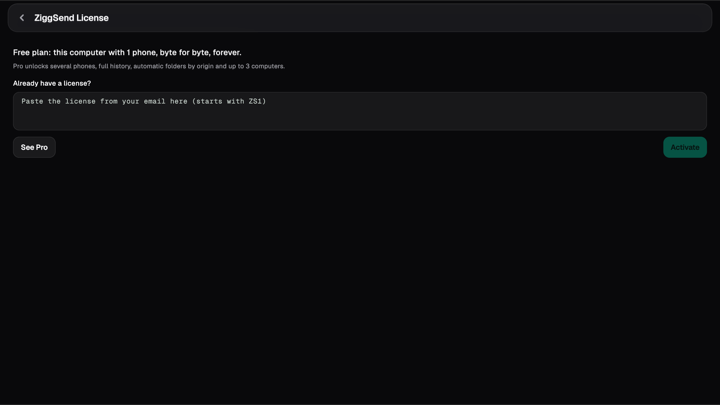
The computer app is free forever with one paired phone. The footer shows “Free plan” (on the Mac, “Free · 1 phone”); on the license screen, “See Pro” (on the Mac, “Buy”) opens the plans.
- Free: one paired phone per computer, today’s history, everything into the chosen folder. Byte-for-byte check, no size limit, no ads — always.
- Pro: several phones, full history, automatic folders by source, up to 3 computers. See the plans.
7 When the list stays empty
After 10 seconds the app itself tells you what to check. The usual causes, in order:
- Both devices on the same Wi-Fi? Guest, hotel and office networks often isolate devices — use your home Wi-Fi or the phone’s hotspot.
- VPN on either side? Turn it off while connecting.
- Windows: when it asks about the network, choose “Allow access” on private networks.
- Slow? The app warns when Wi-Fi is on 2.4 GHz — move both to 5 GHz.
- HEIC photos on Windows: install the HEIF extension. More in the guides.
Ready in a few minutes
Install the computer app, then the phone app, and connect once.
Download freeCommon questions
Do I need a cable?
No. Wi-Fi is enough. On the Mac, a USB cable to an Android phone is an extra option.
Does it work between an Android and an iPhone?
Yes — any pair, in both directions, with the same steps. Phone to phone works without a computer too.
Do I have to reconnect every time?
No. You connect once; on the same Wi-Fi the devices find each other by themselves. Changed networks? Open the connect window again.
Where do the files go?
Computer: on Windows, the folder you chose; on the Mac, the folder shown in the panel footer (by default a ZiggSend folder inside Movies; one click changes it). Phone: gallery for photos and videos; Files or Downloads for everything else. The receipt always says where.