How to use ZiggSend on Android
From the first tap to the settings, with the app screens. The computer needs ZiggSend open and the same Wi-Fi.
What you need
See all 18 steps
- 1. Install and open
- 2. Point at the QR
- 3. Check the number
- 4. Home is your gallery
- 5. Select and send
- 6. Wrong one? Undo
- 7. Watch it go
- 8. Arrived
- 9. Several computers at once
- 10. One notice per computer
- 11. Receive from the computer
- 12. See what arrived
- 13. Wi-Fi notice
- 14. Different network
- 15. The Z panel
- 16. Where things go
- 17. Your devices
- 18. Free forever
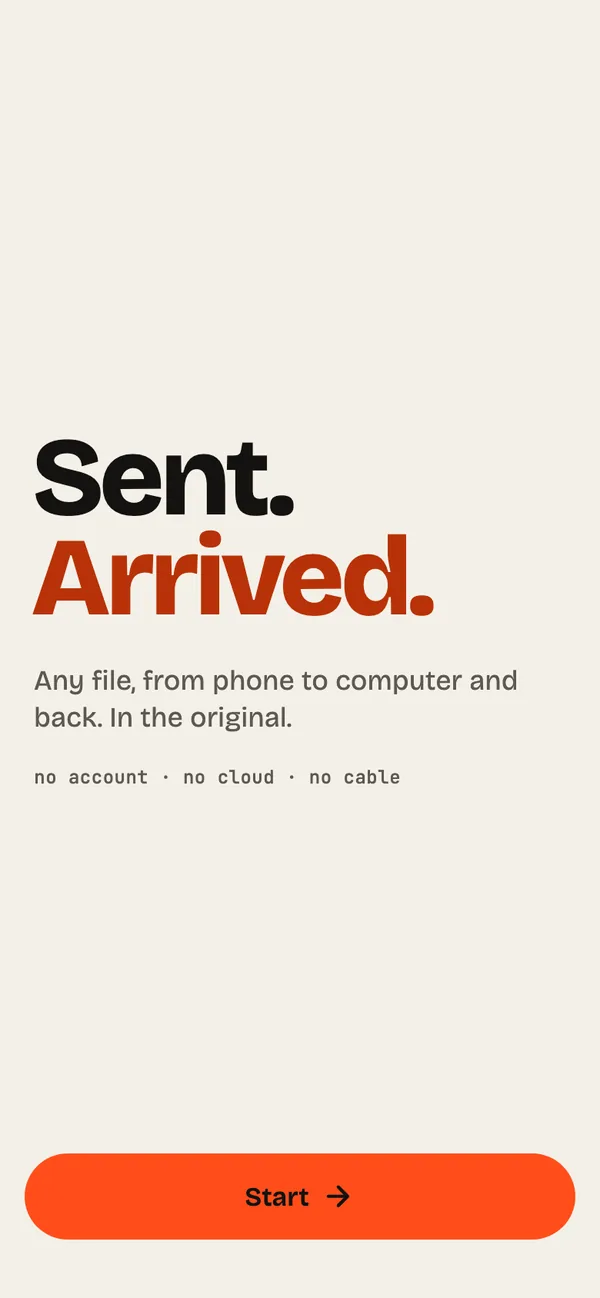
- Step 1
Install and open
Get it free on Google Play, open ZiggSend and tap “Start”.
- Step 2
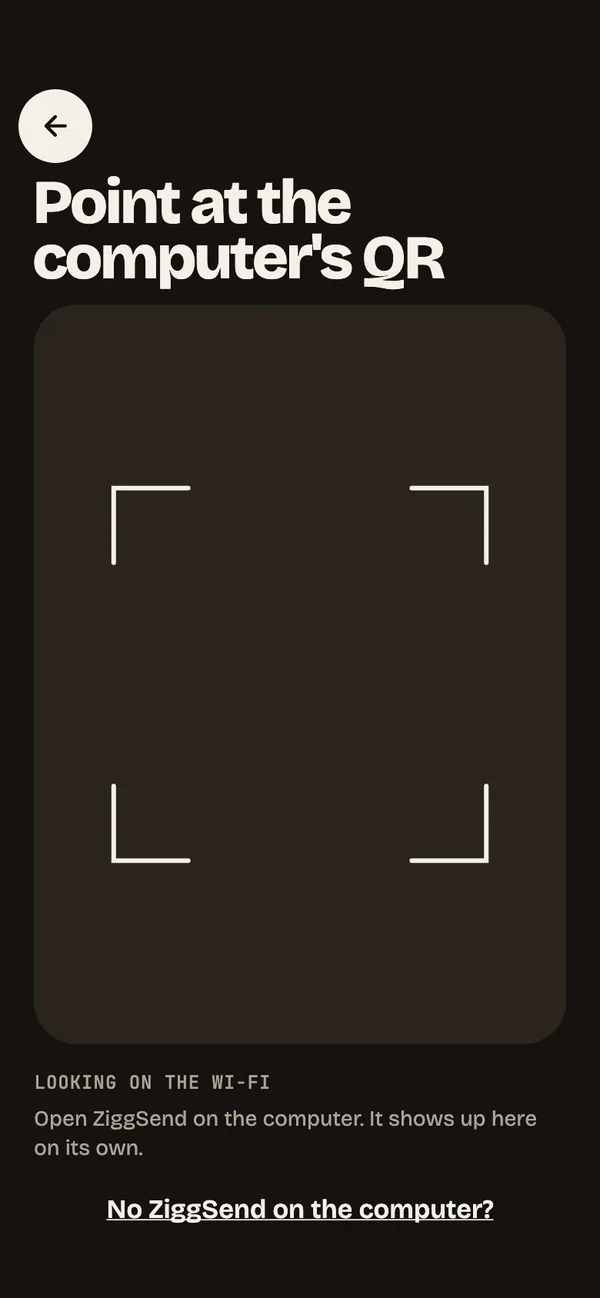
Point at the QR
Open ZiggSend on the computer and point the camera at its QR code.
- Step 3
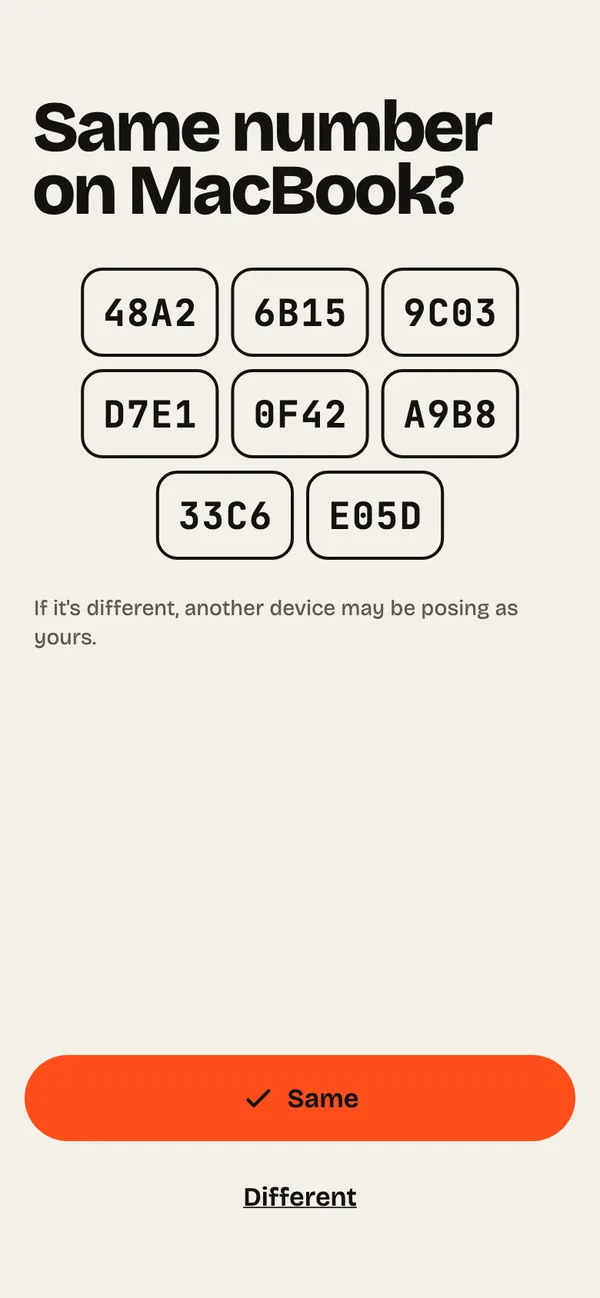
Check the number
Same number on both screens? Tap “Same”.
- Step 4
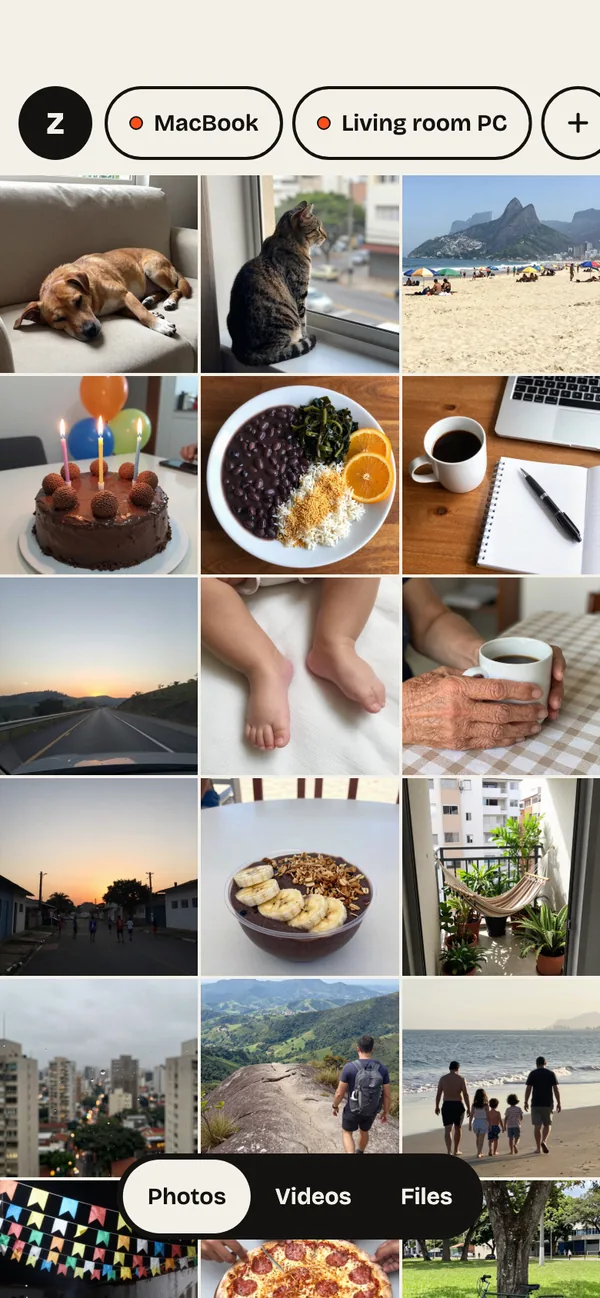
Home is your gallery
Computers sit at the top, like doors. Your photos are below.
- Step 5
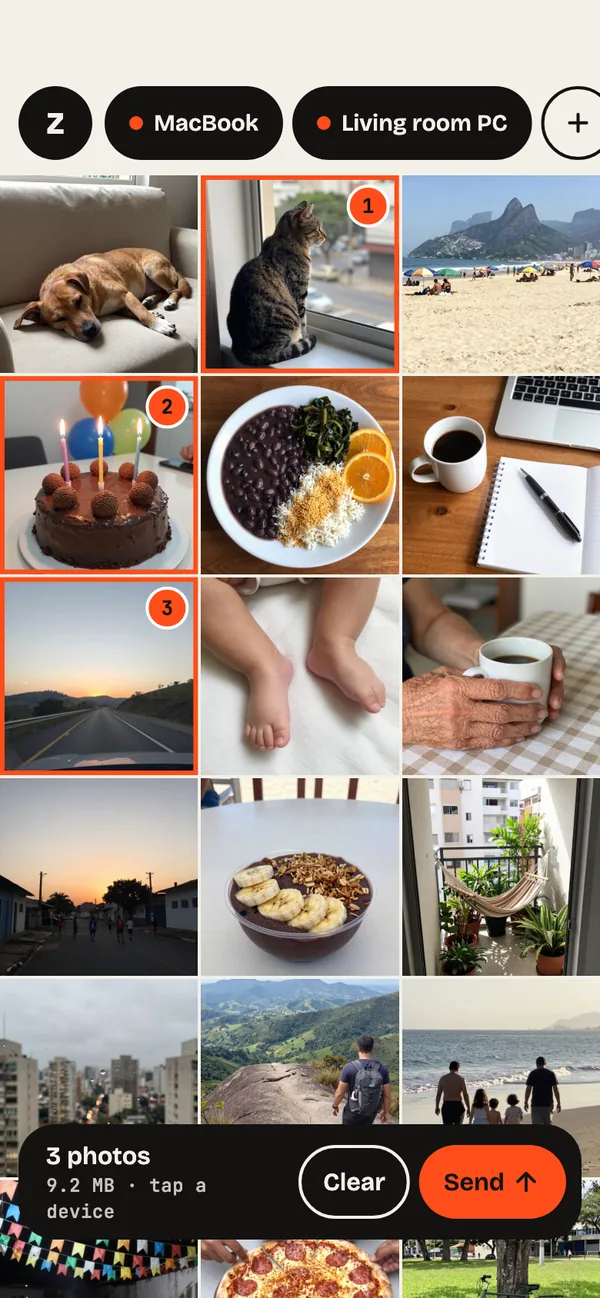
Select and send
Tap photos to select them, then tap the computer’s door.
- Step 6
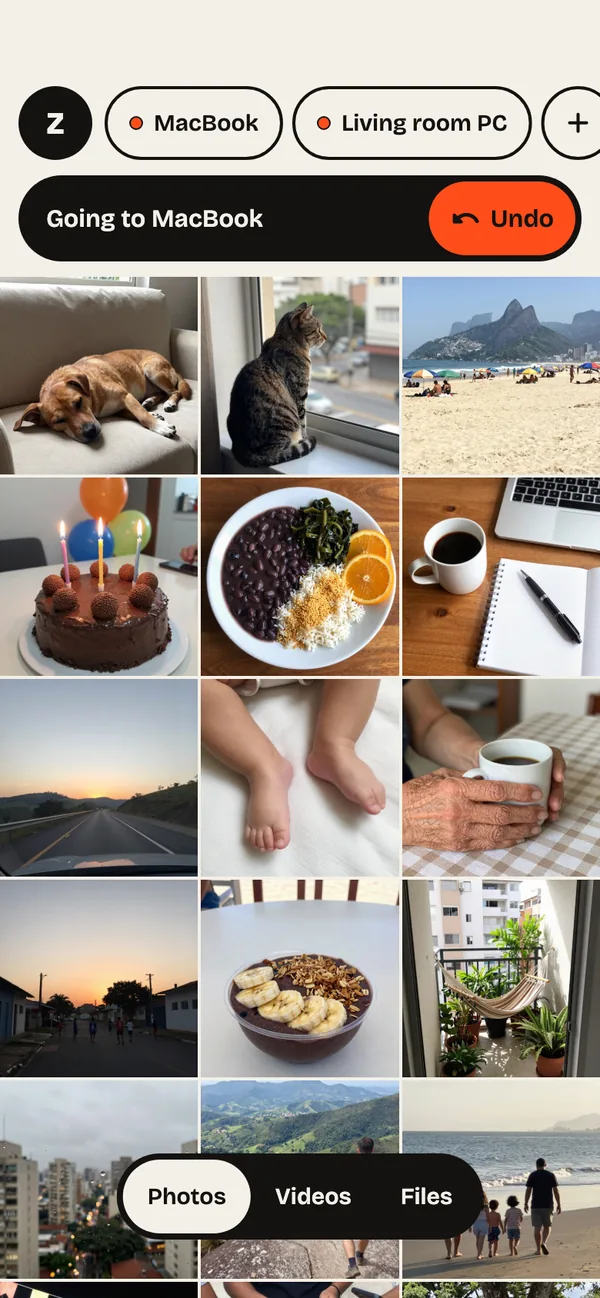
Wrong one? Undo
“Undo” shows for 3 seconds, before sending starts.
- Step 7
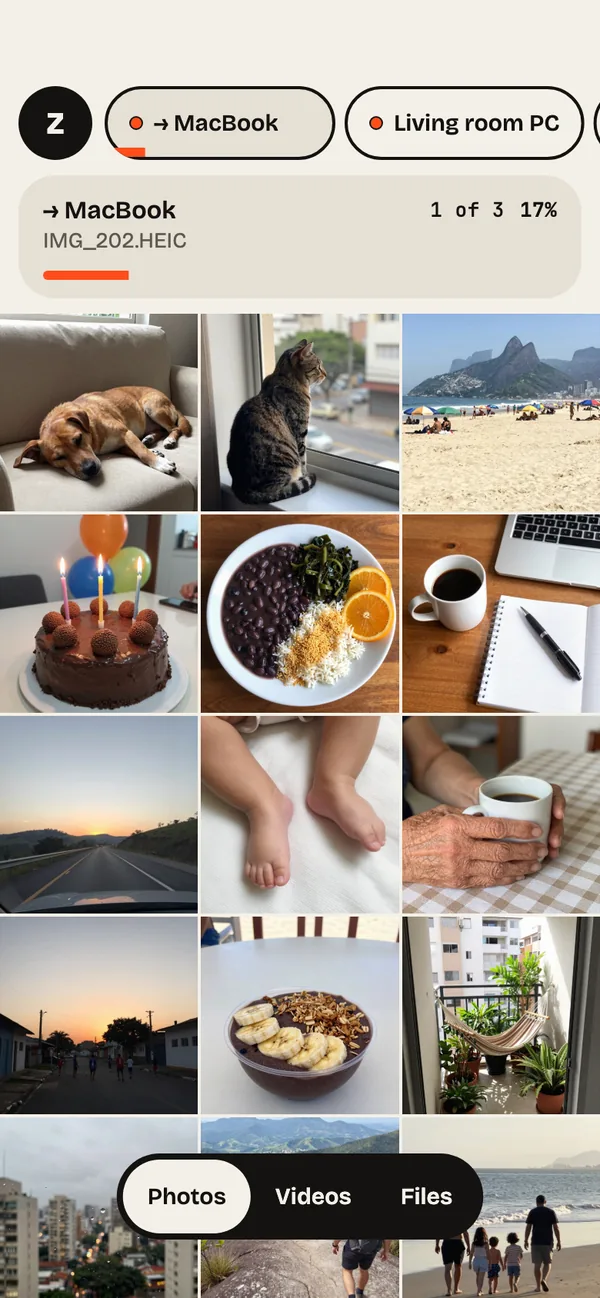
Watch it go
The door turns into a bar with the file and the progress.
- Step 8
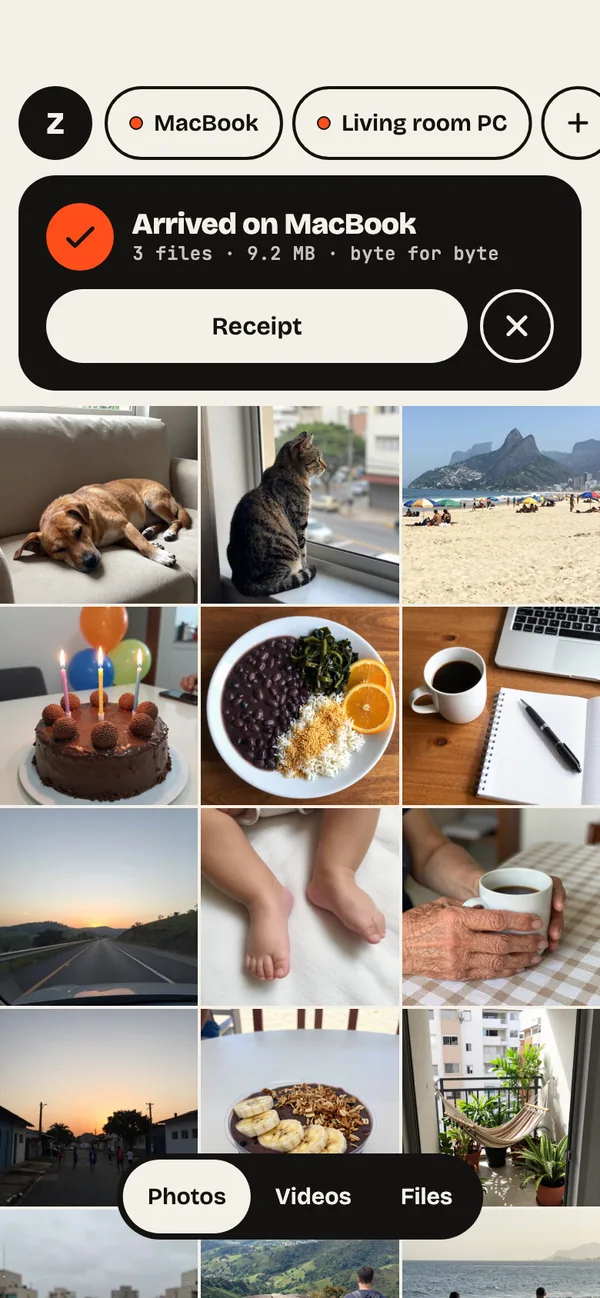
Arrived
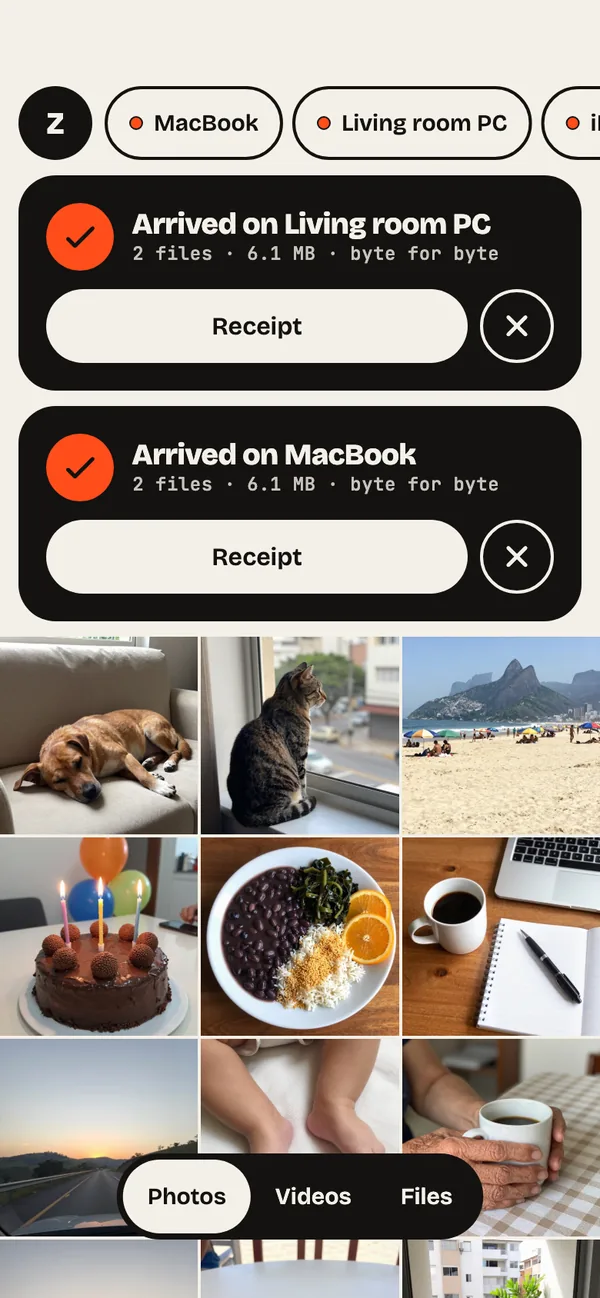
“Arrived on MacBook”, checked byte for byte. “Receipt” shows the proof.
- Step 9
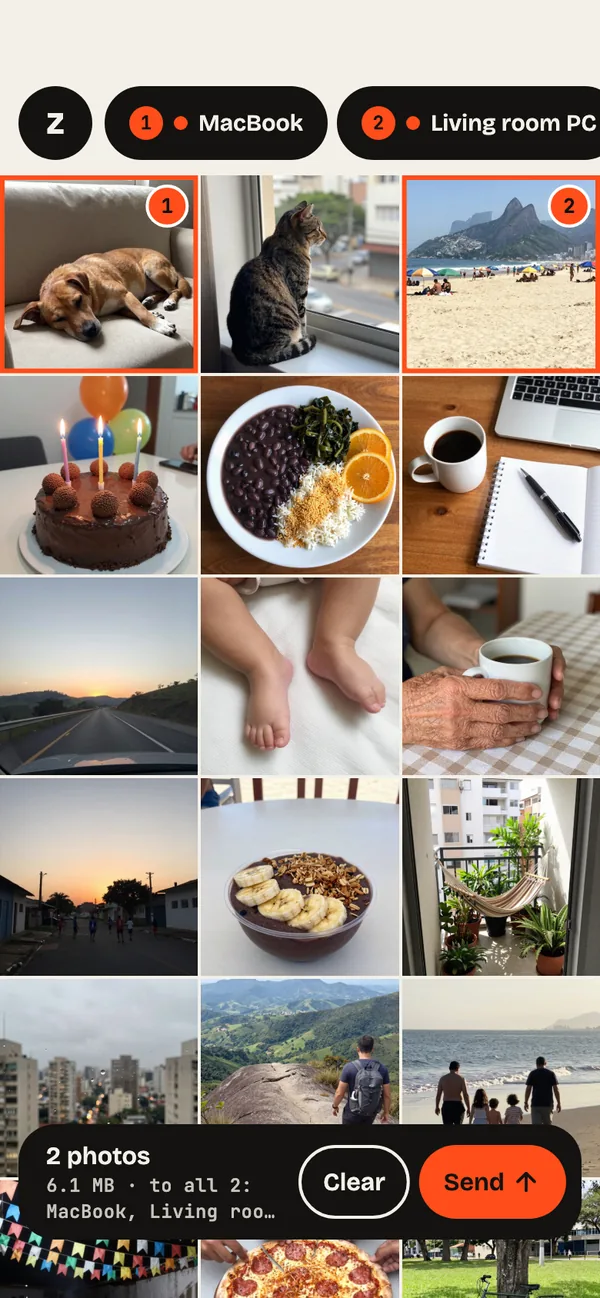
Several computers at once
Hold a door and tap the others. “Send” goes to all of them.
- Step 10
One notice per computer
Each computer confirms the arrival on its own card, with a receipt.
- Step 11
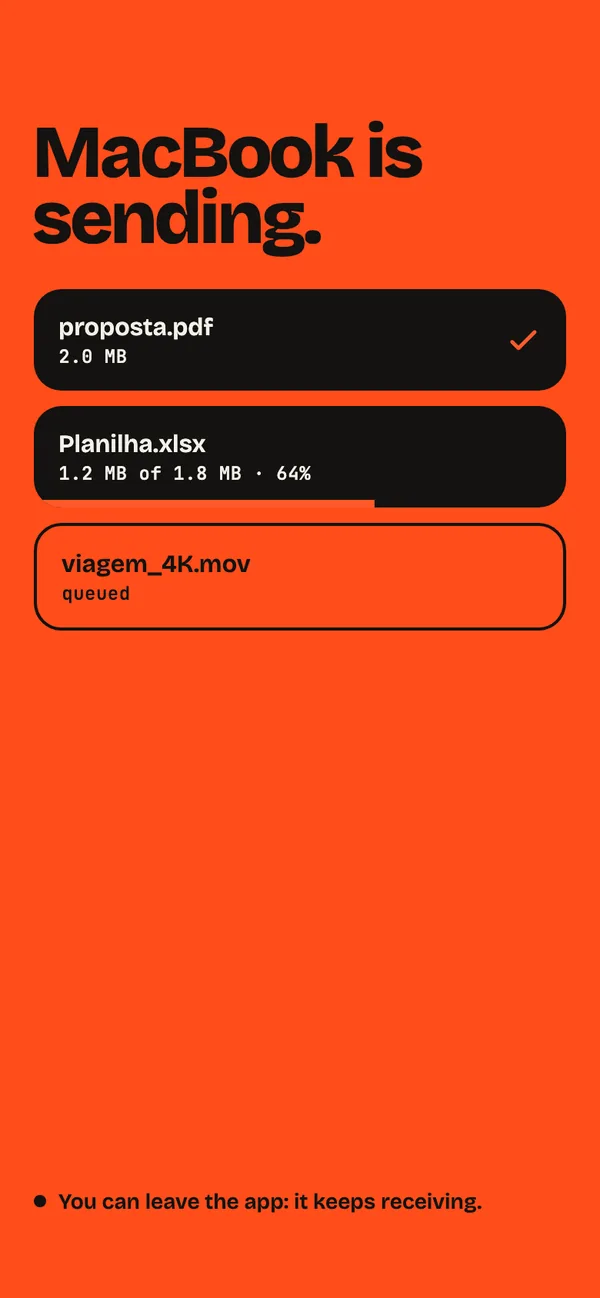
Receive from the computer
On the computer, drop the file and pick the phone. You can leave the app.
- Step 12
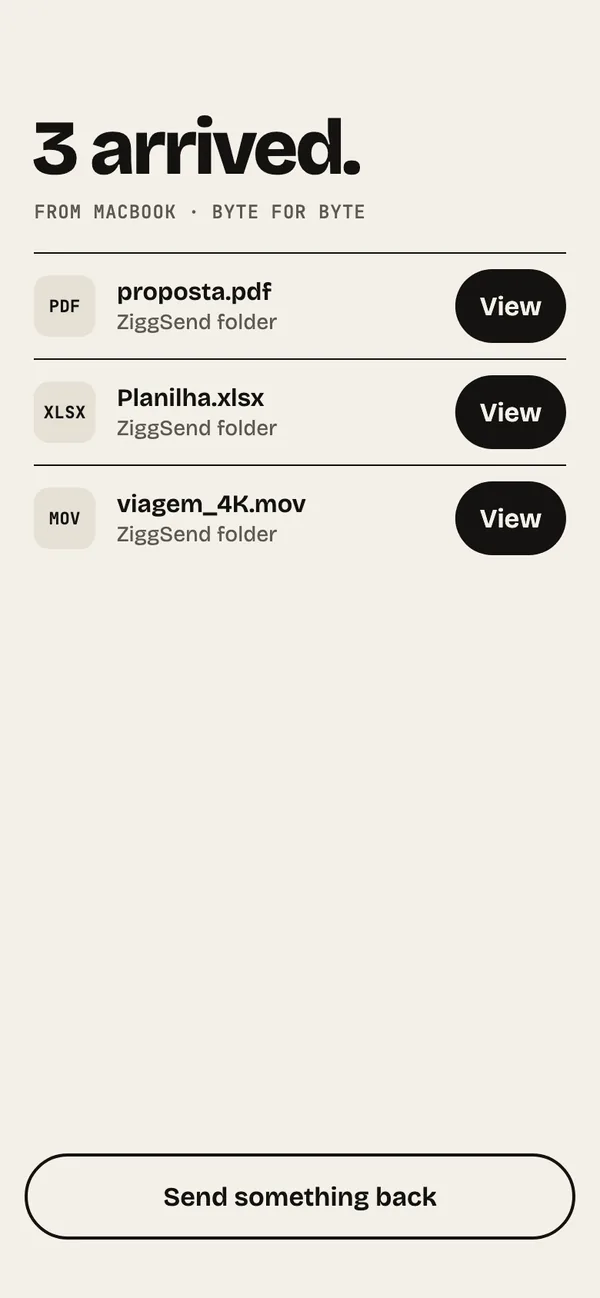
See what arrived
Tap “View” to open each file you received.
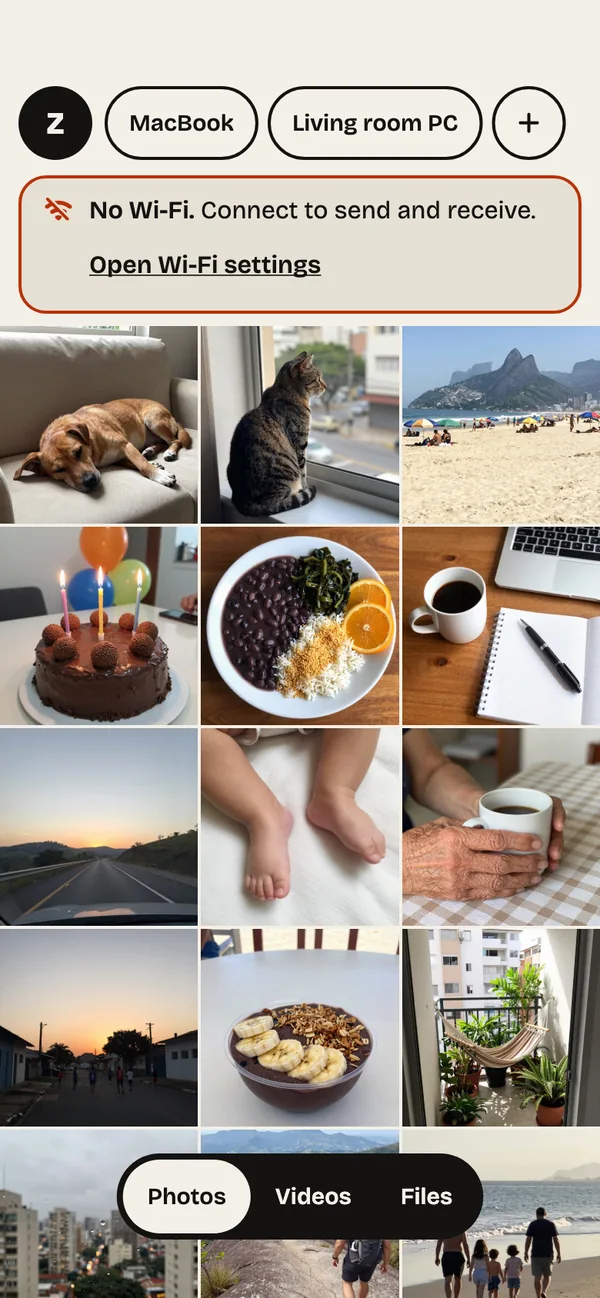
- Step 13
Wi-Fi notice
No Wi-Fi? The app says so at the top. “Open Wi-Fi settings” goes straight there.
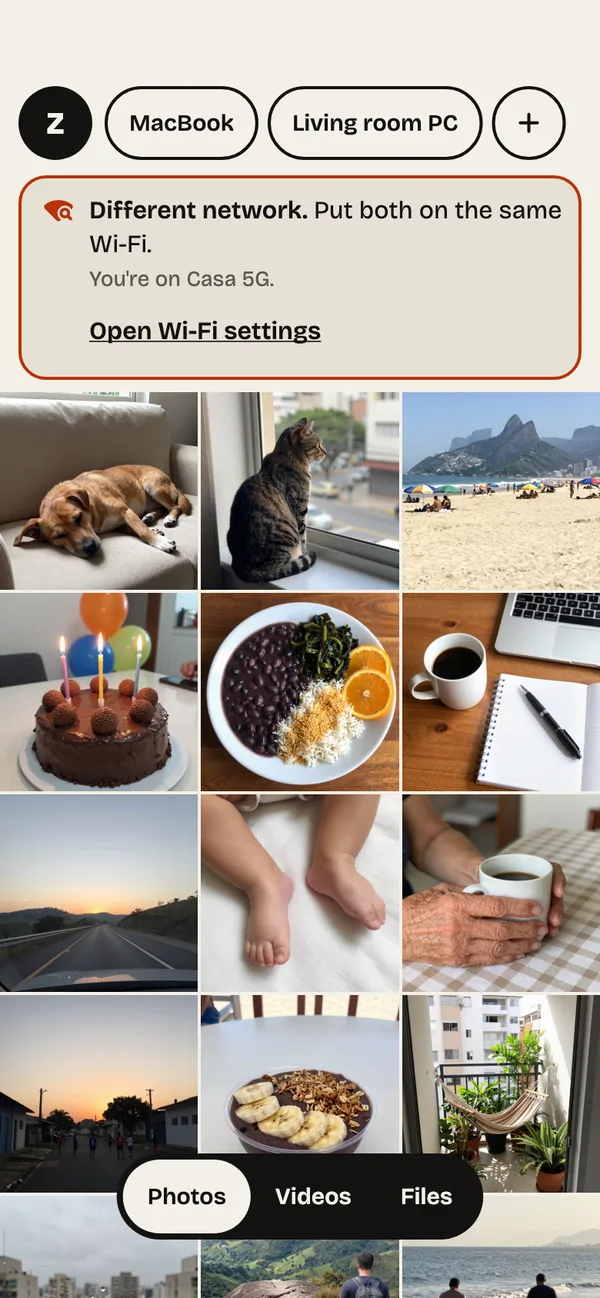
- Step 14
Different network
Phone and computer on different networks? Put both on the same Wi-Fi.
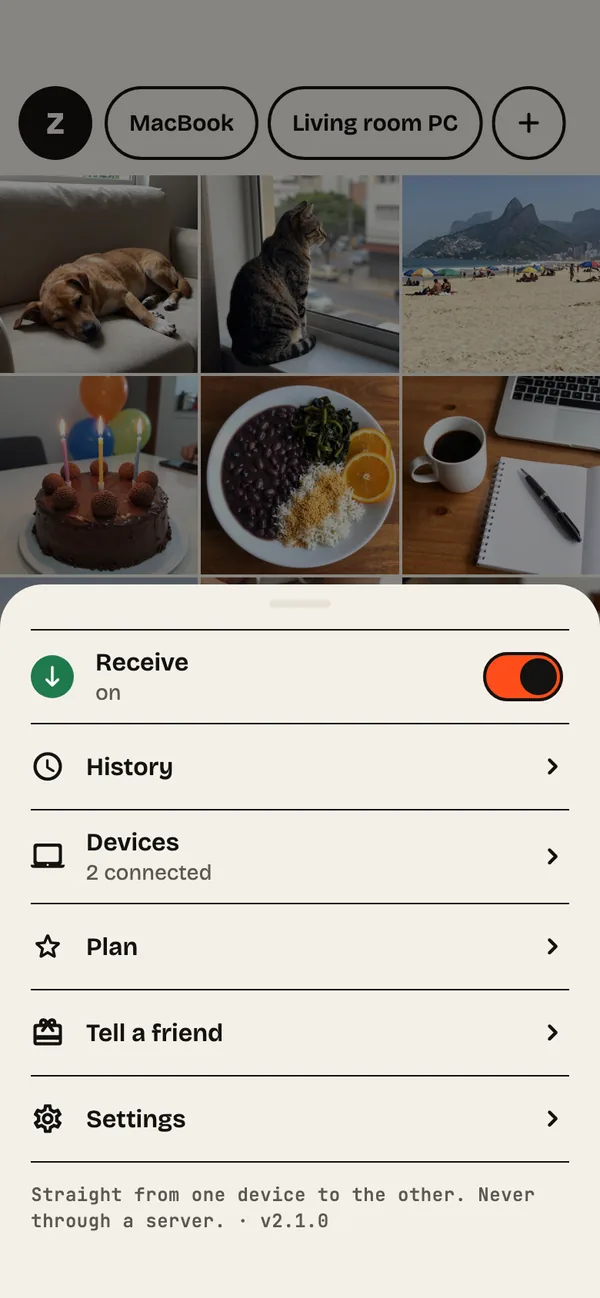
- Step 15
The Z panel
Tap Z for Receive, History, Devices, Plan and Settings.
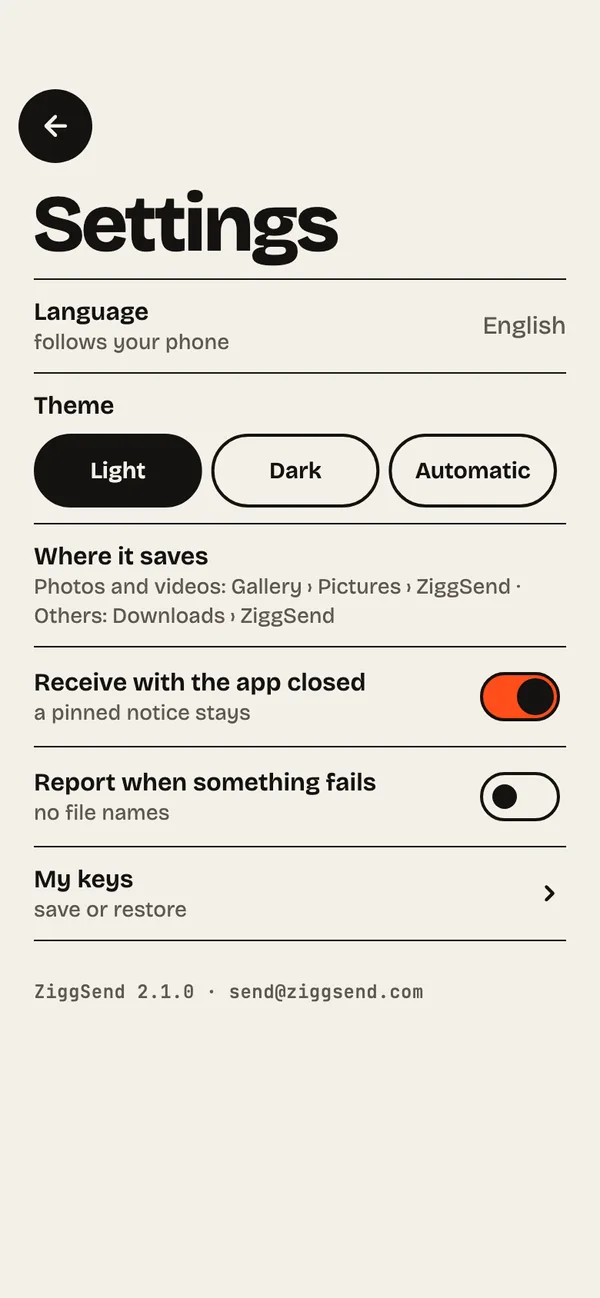
- Step 16
Where things go
Photos and videos go to the gallery; other files to Downloads › ZiggSend.
- Step 17
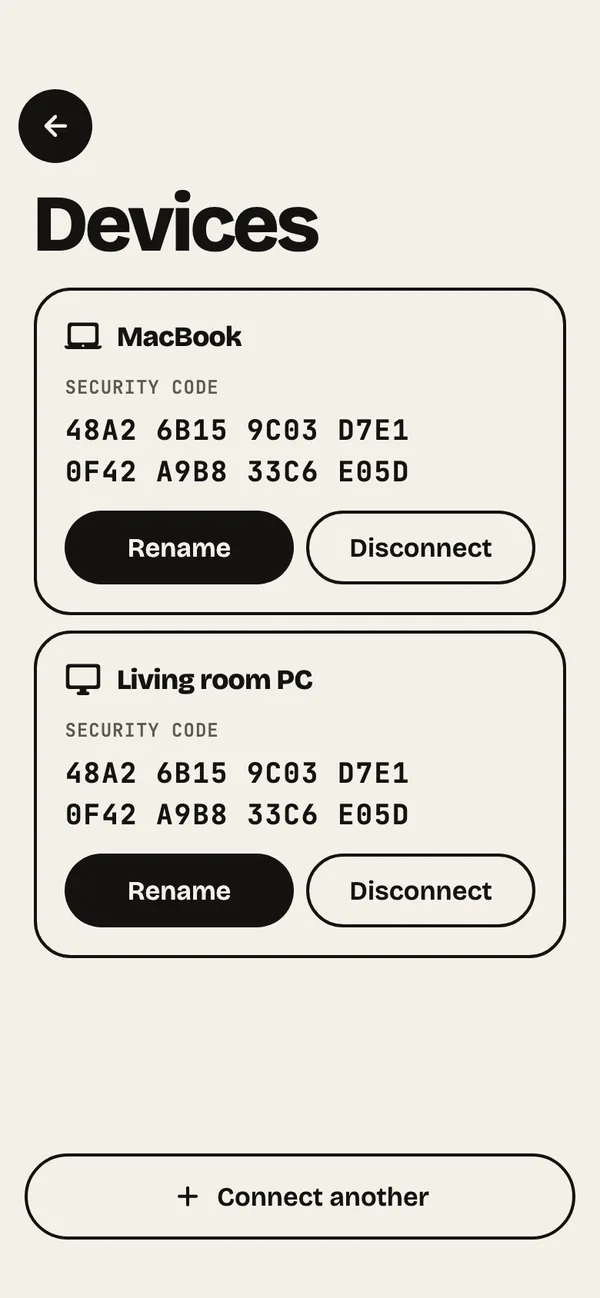
Your devices
Rename or disconnect each computer. Its security code is here.
- Step 18
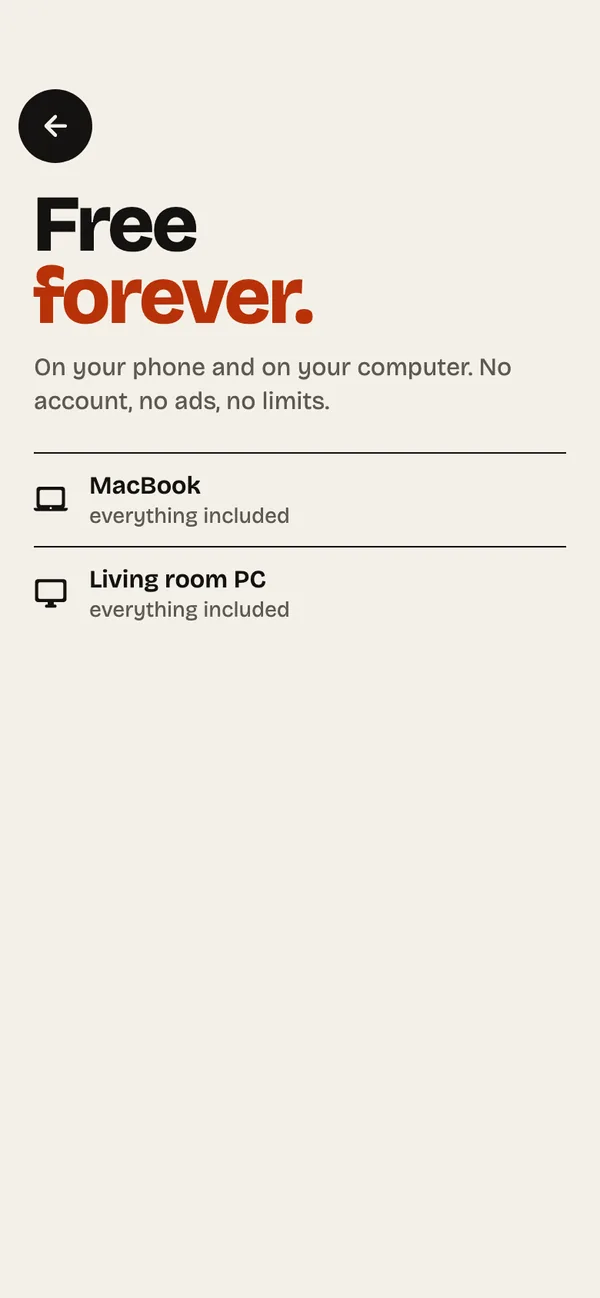
Free forever
Plan shows each computer with everything included. No time limit, no caps.


Want to help the project?
Founder: an optional one-time payment that helps ZiggSend grow and keep improving. $4.99 once. Nothing changes if you don't pay.
See how it works →Moving files, pair by pair
The full route from one device to the other, with what can go wrong.
How to transfer files from Android to Mac →How to transfer files from Android to PC →How to transfer files from Mac to Android →How to transfer files from PC to Android →How to transfer files from iPhone to Android →How to transfer files from Android to iPhone →How to transfer files from Android to Android →