How to use ZiggSend on Windows
Install it from the Microsoft Store and open it. The ZiggSend window receives and sends, no account, no cloud.
What you need
- Step 1
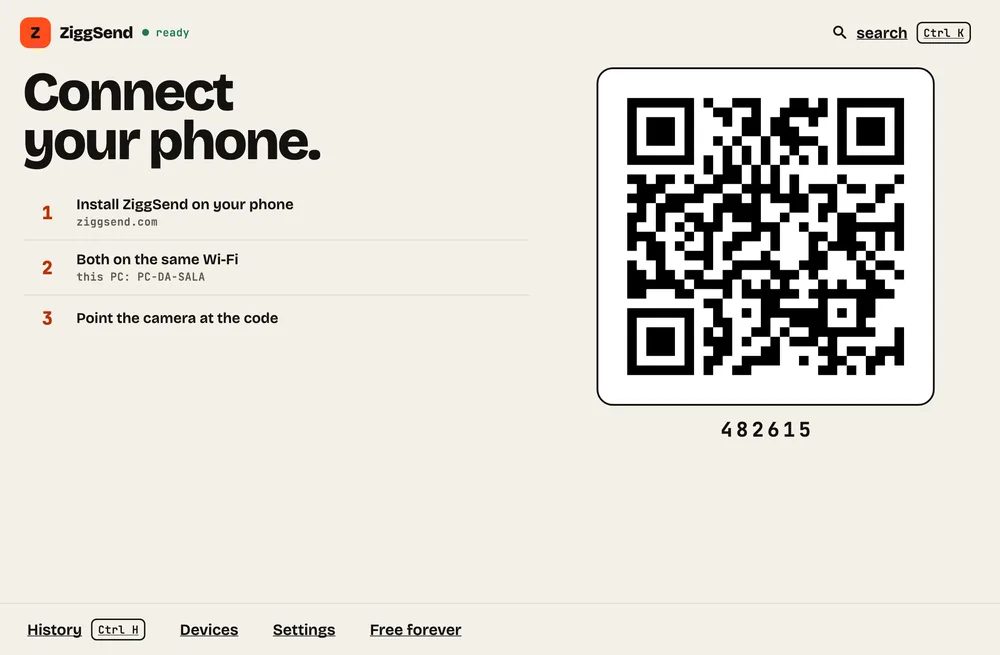
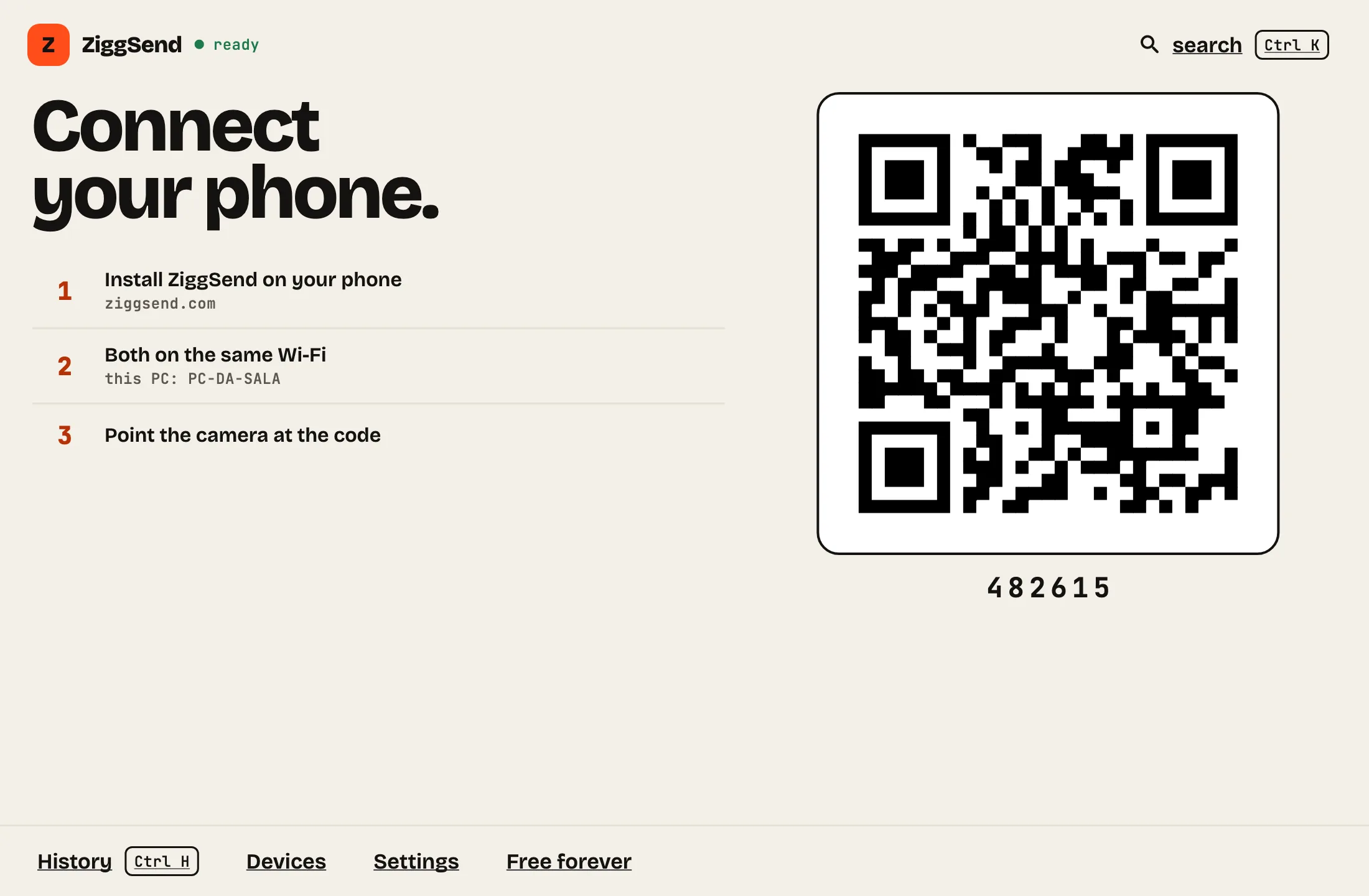
Open and connect
Install from the Microsoft Store, open it and show the QR to your phone.
- Step 2
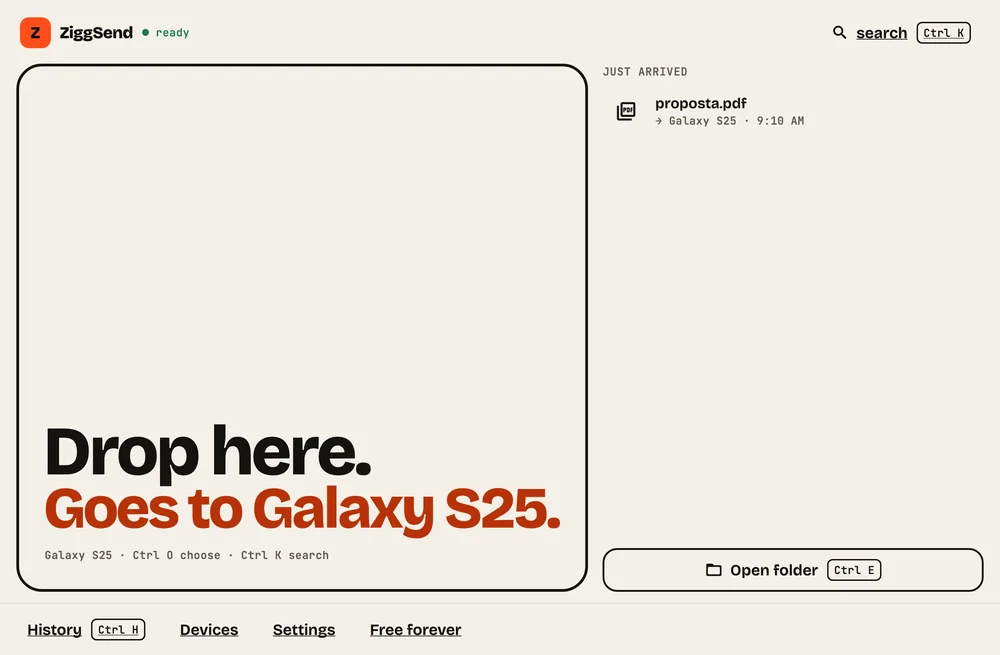
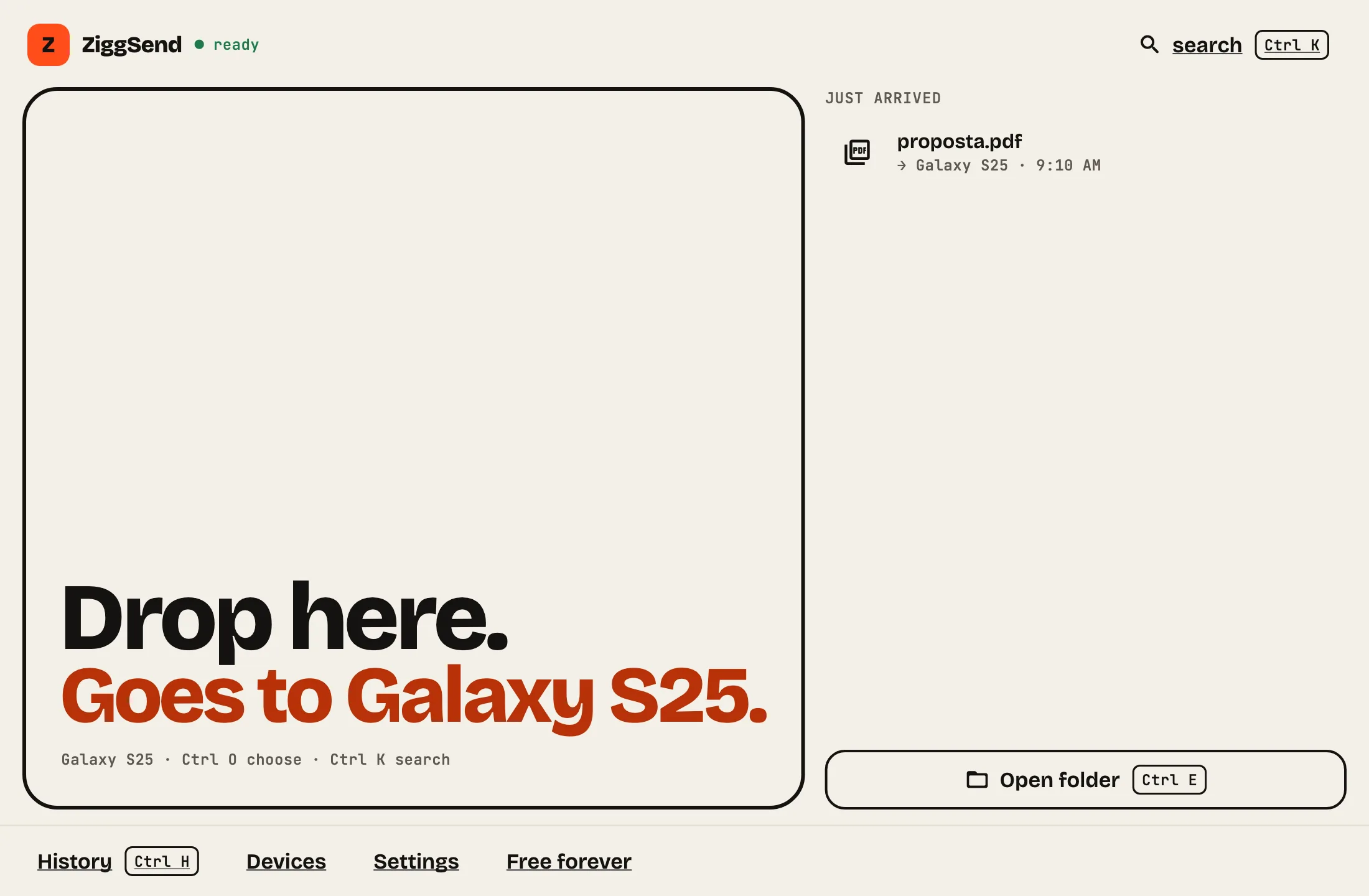
Drop to send
Drag files onto “Drop here.” or press Ctrl O to choose.
- Step 3
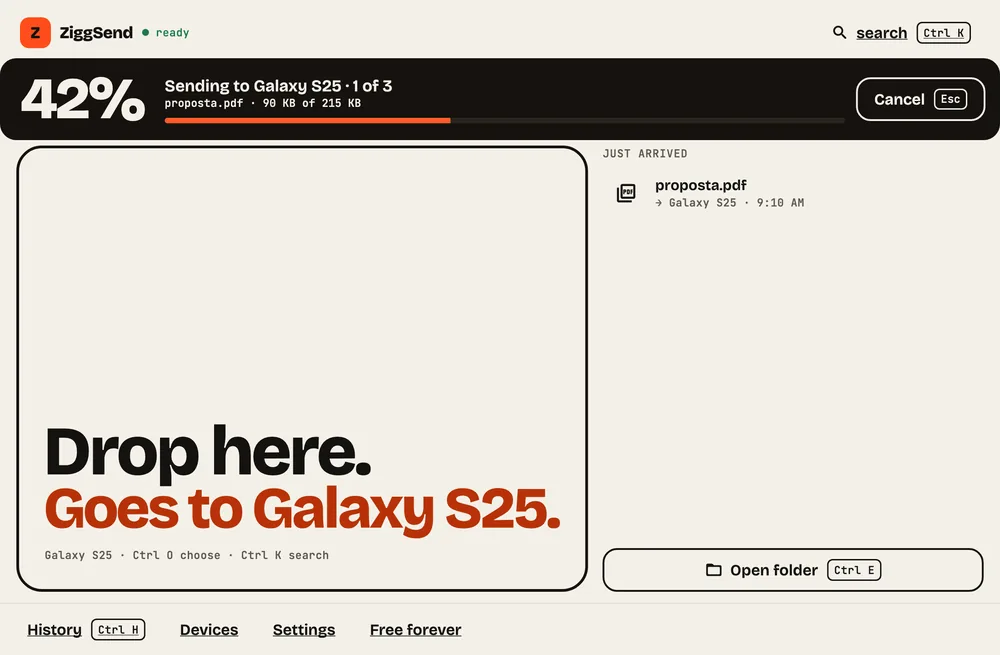
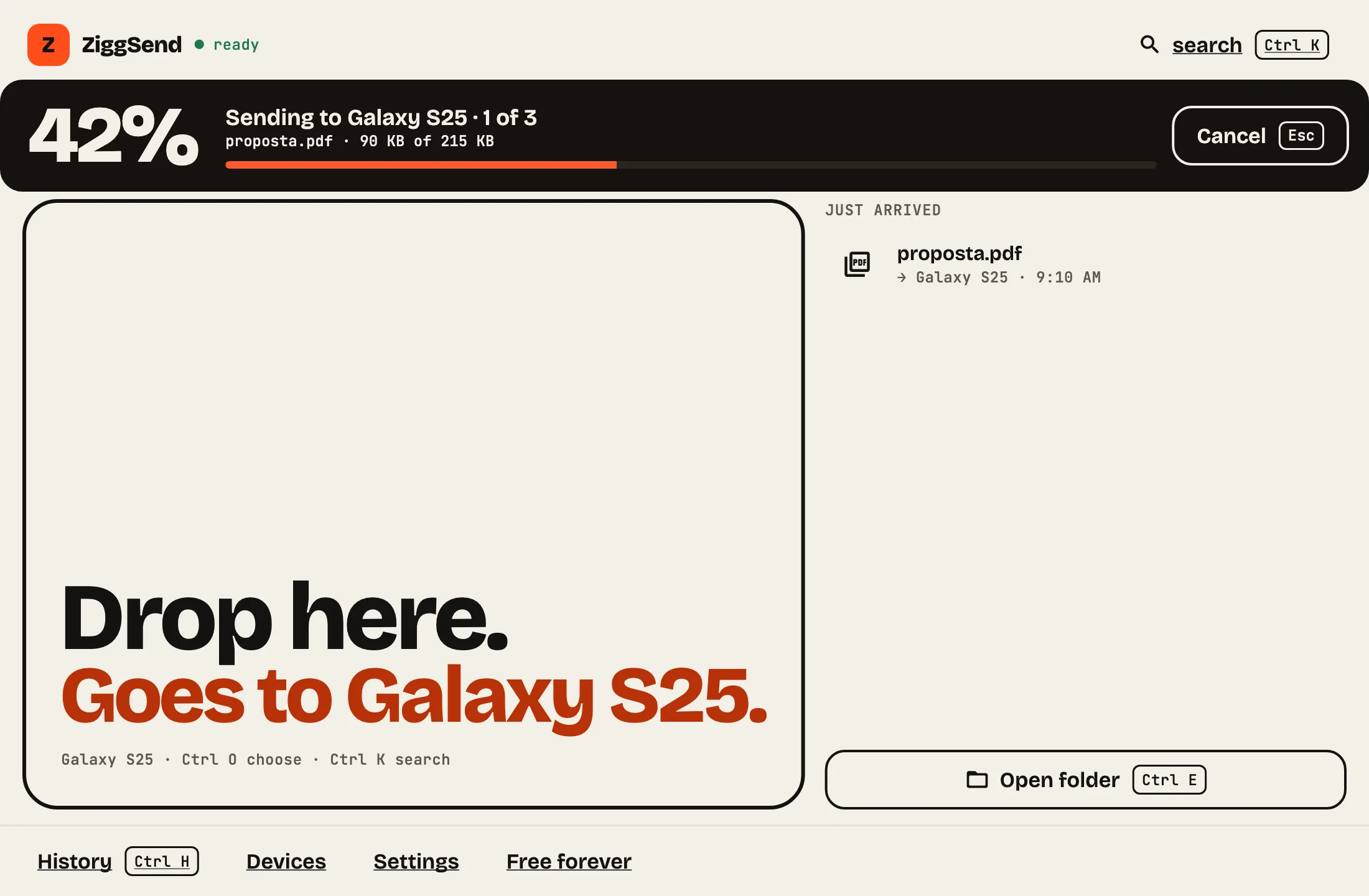
Watch it go
The top bar shows the file and the progress. You can cancel.
- Step 4
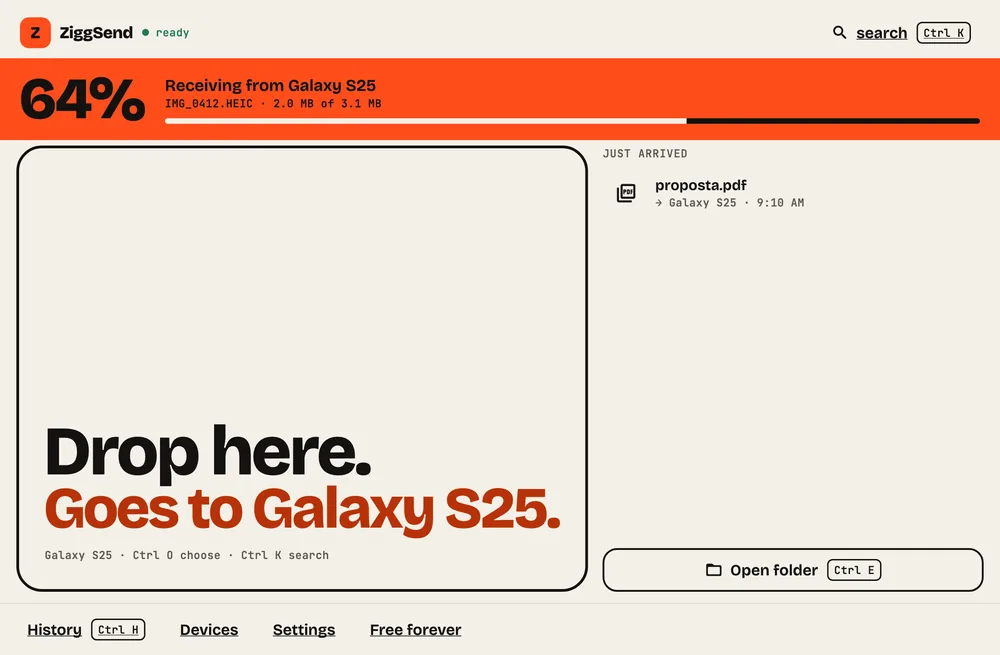
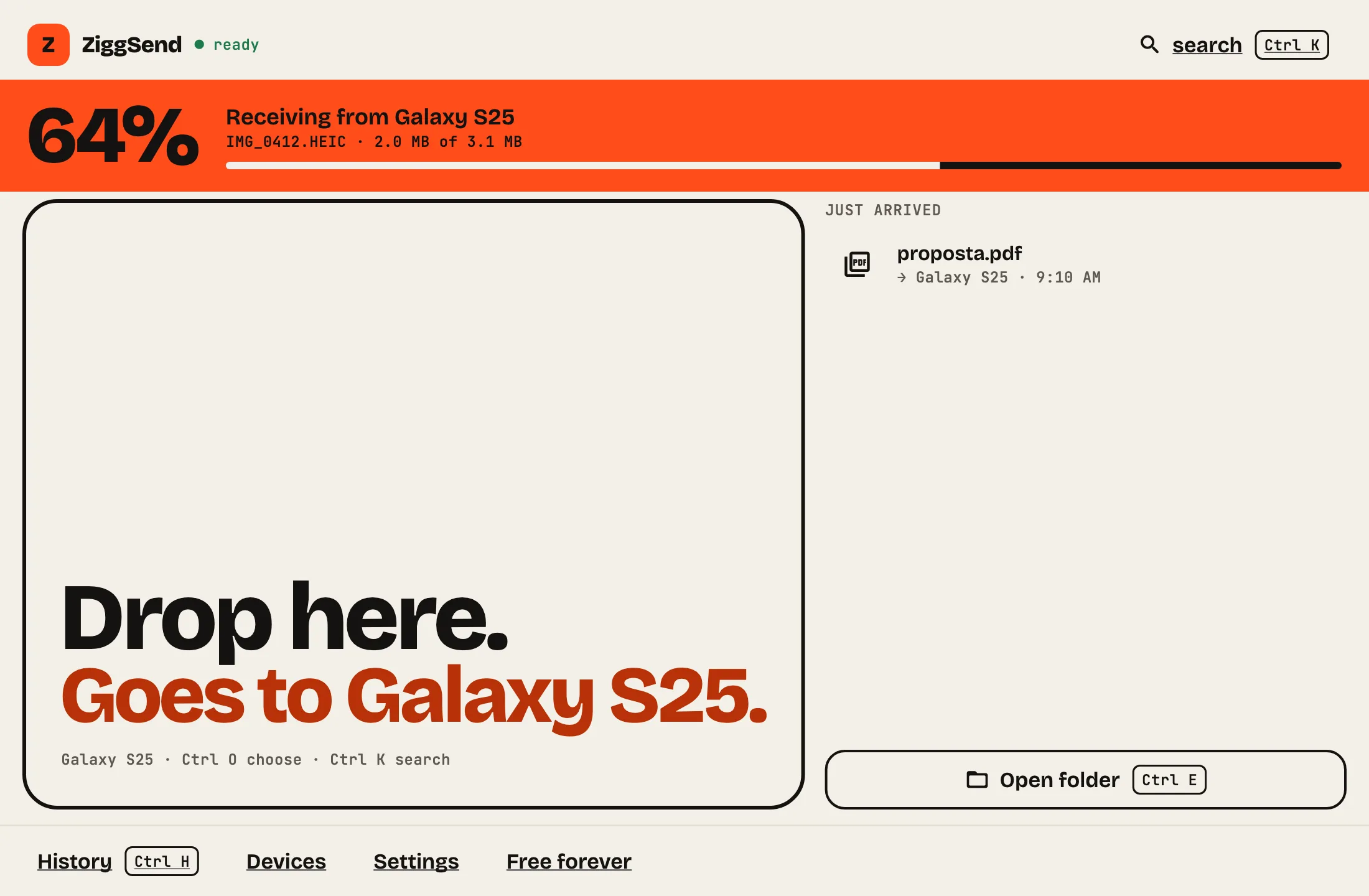
Receive from the phone
When the phone sends, the orange bar shows what is arriving.
- Step 5
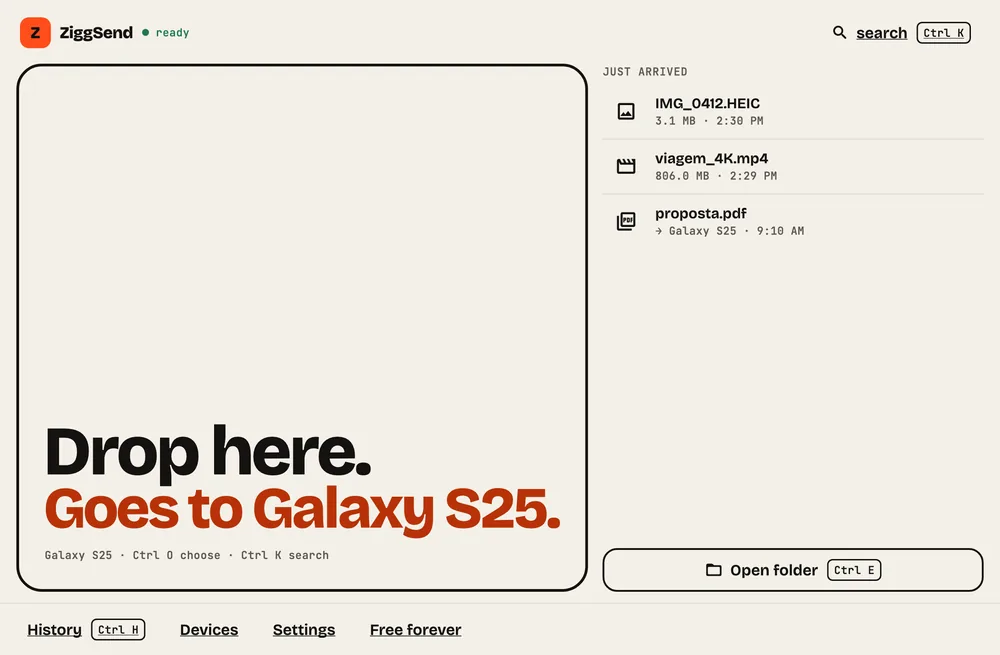
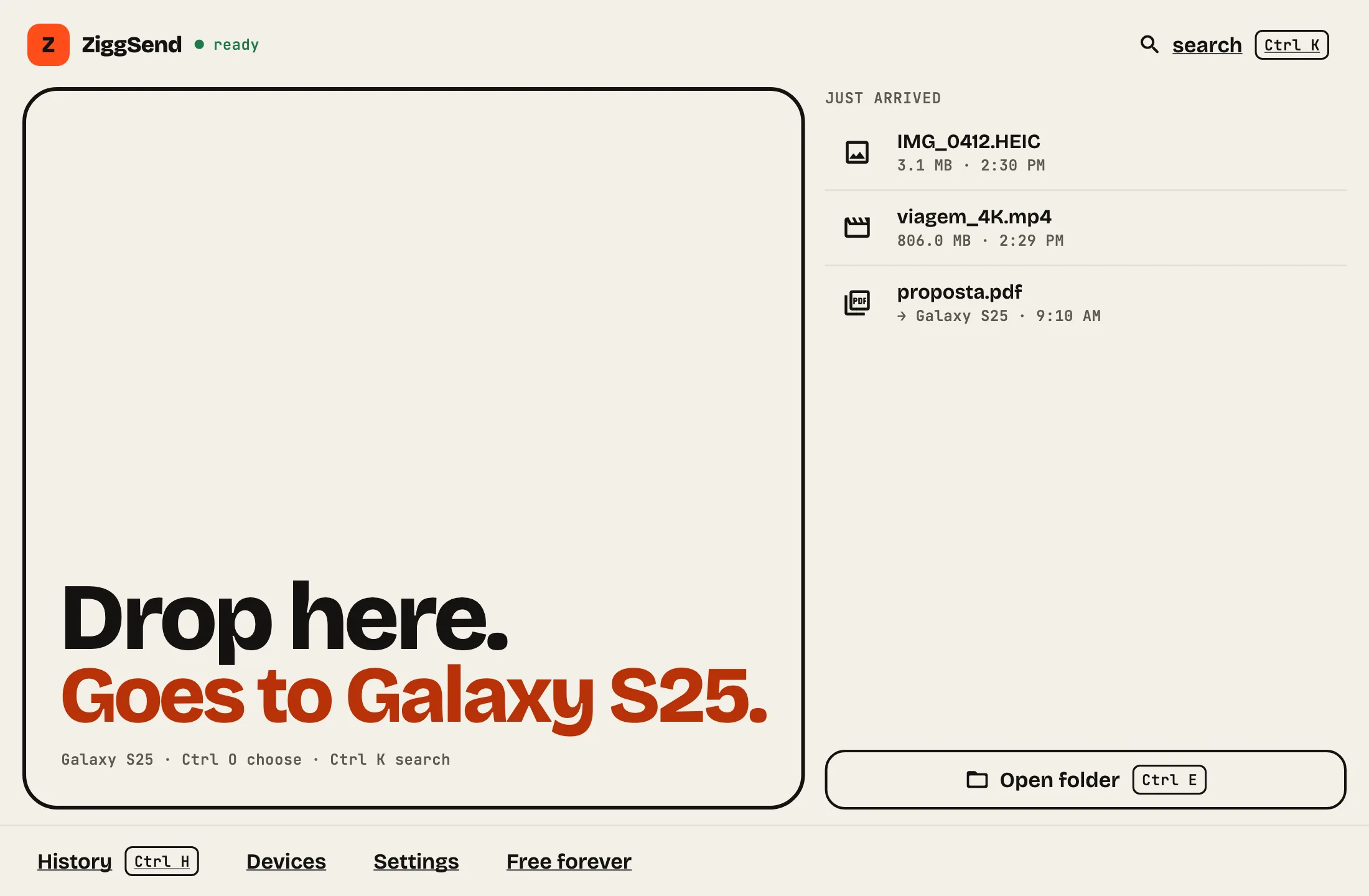
Arrived
What arrived shows under “Just arrived”, on the right of the window.
- Step 6
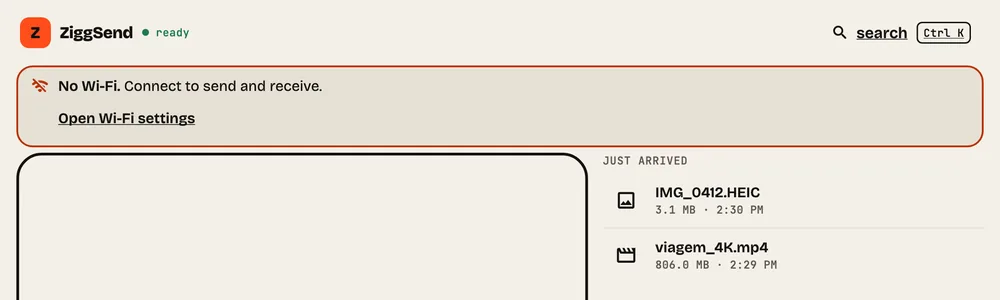
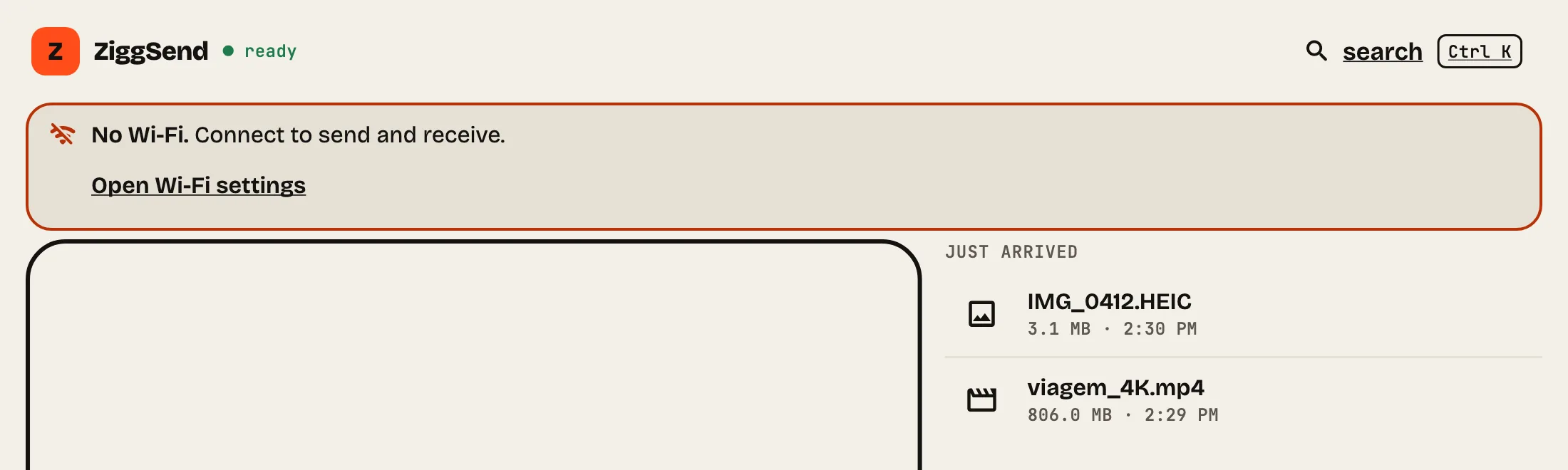
Wi-Fi notice
With no Wi-Fi, the window says so at the top and opens Wi-Fi settings.
- Step 7
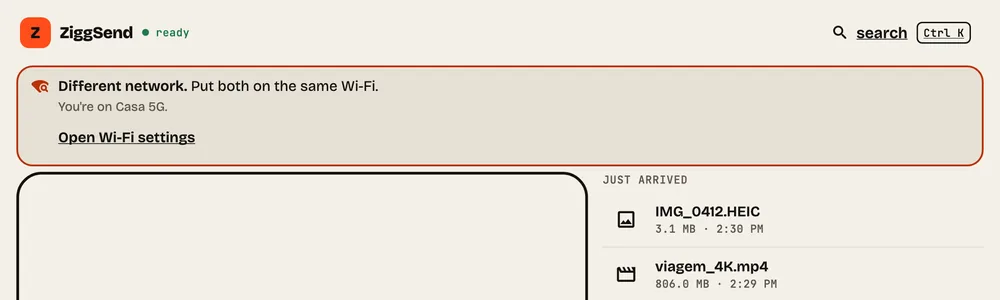
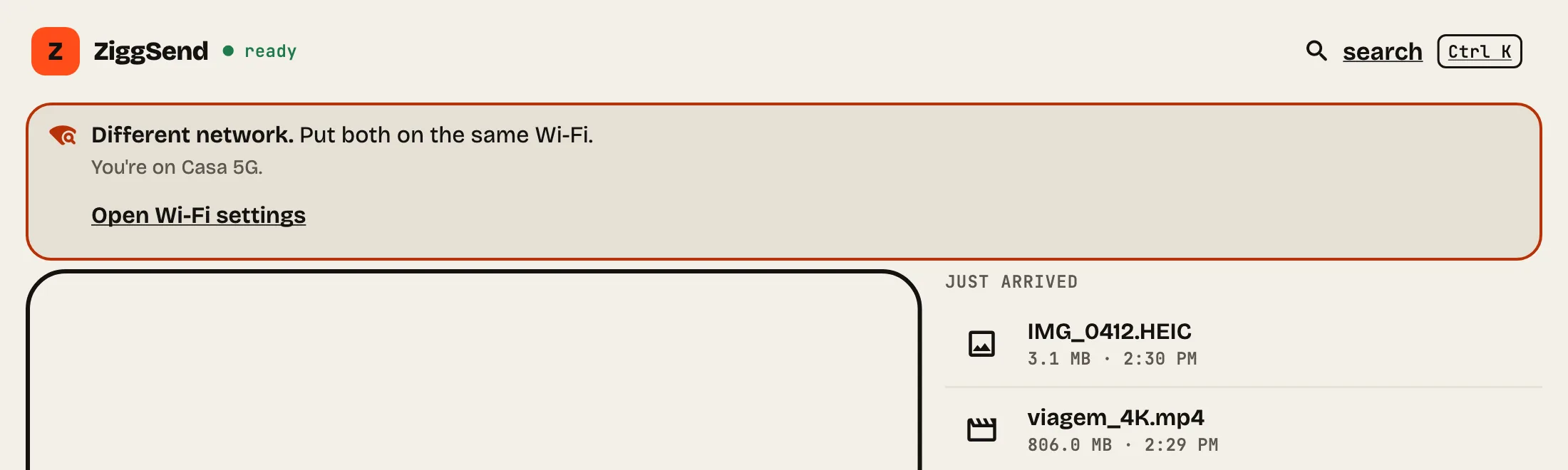
Different network
PC and phone on different networks? Put both on the same Wi-Fi.
- Step 8
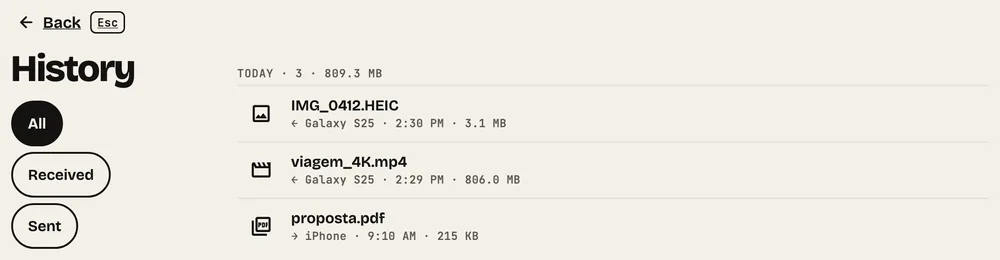
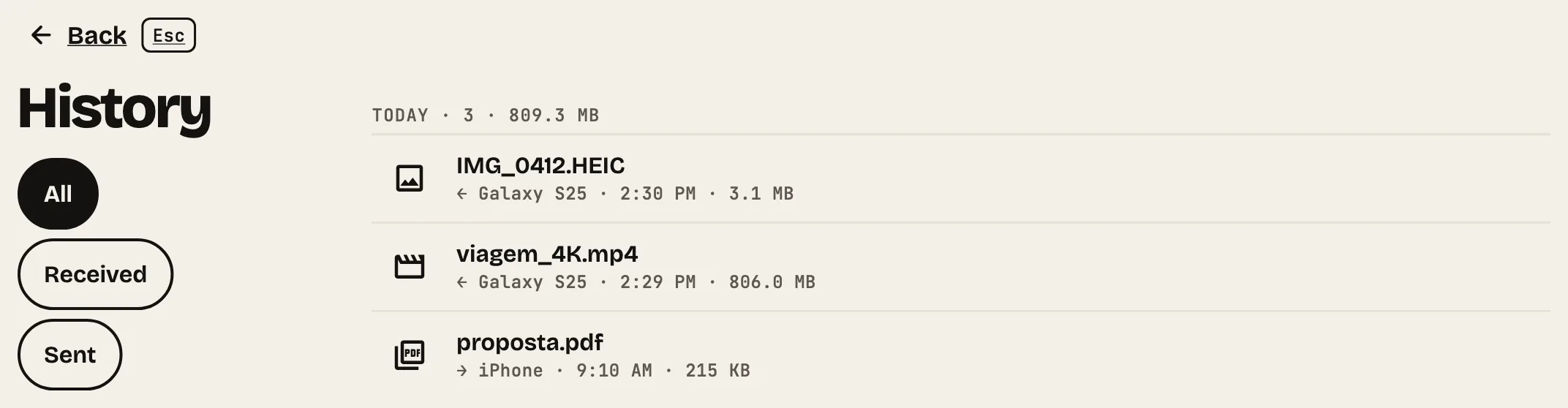
History
Everything in and out. Filter by Received or Sent.
- Step 9
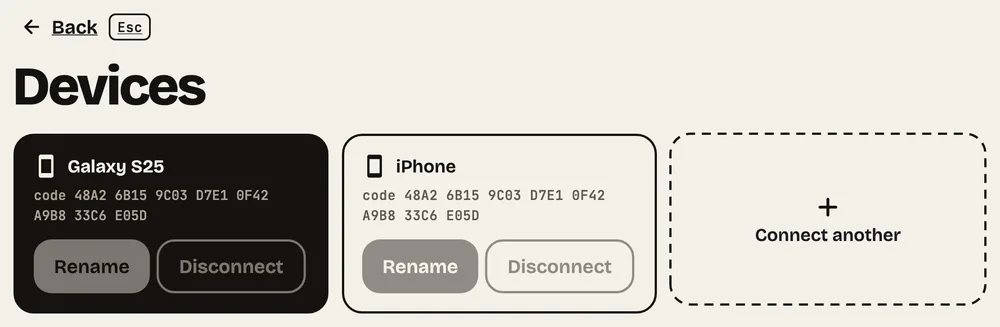
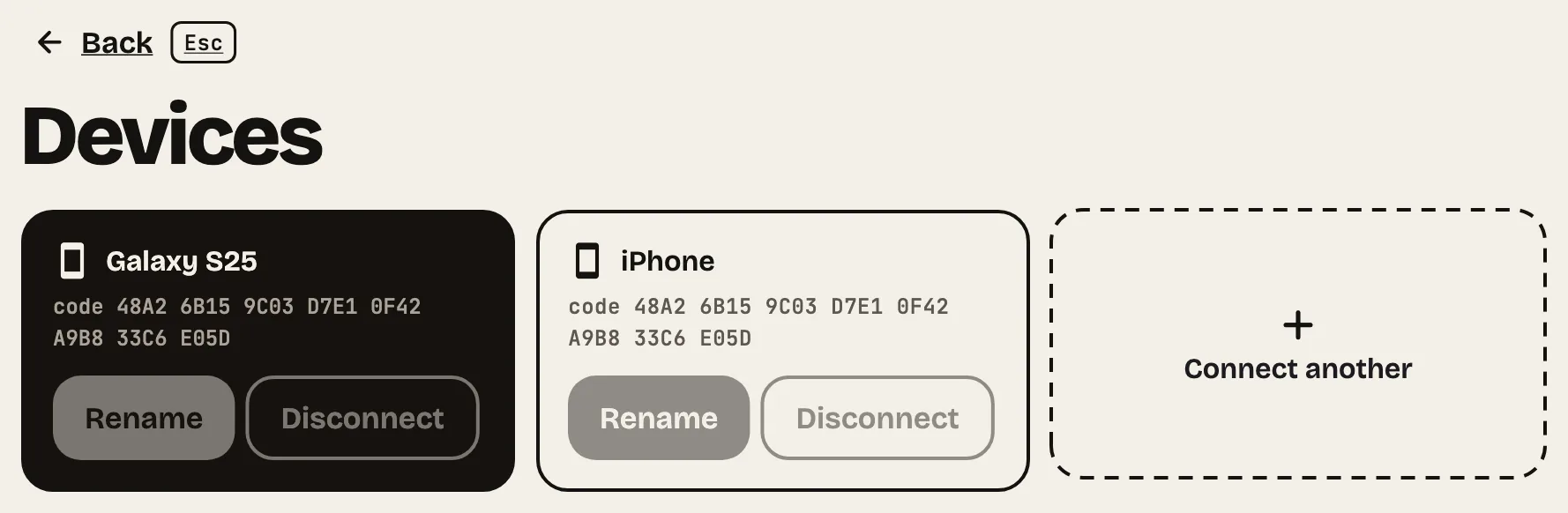
Devices
Rename, disconnect or connect another phone, with each one’s code.
- Step 10
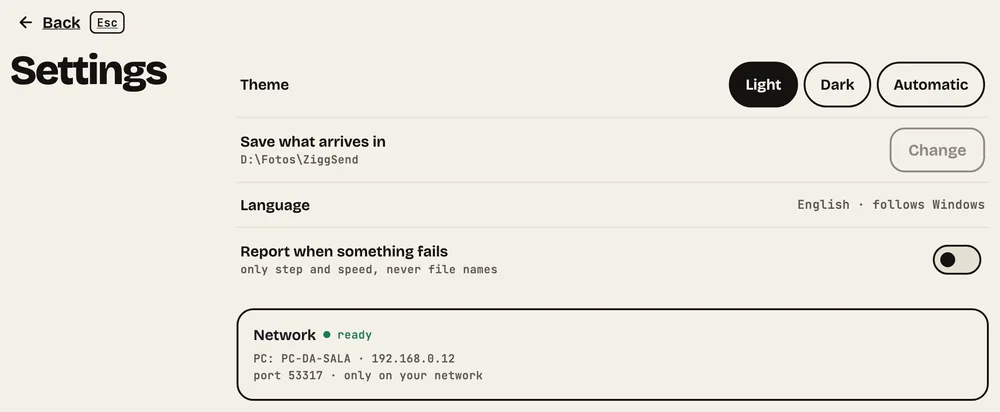
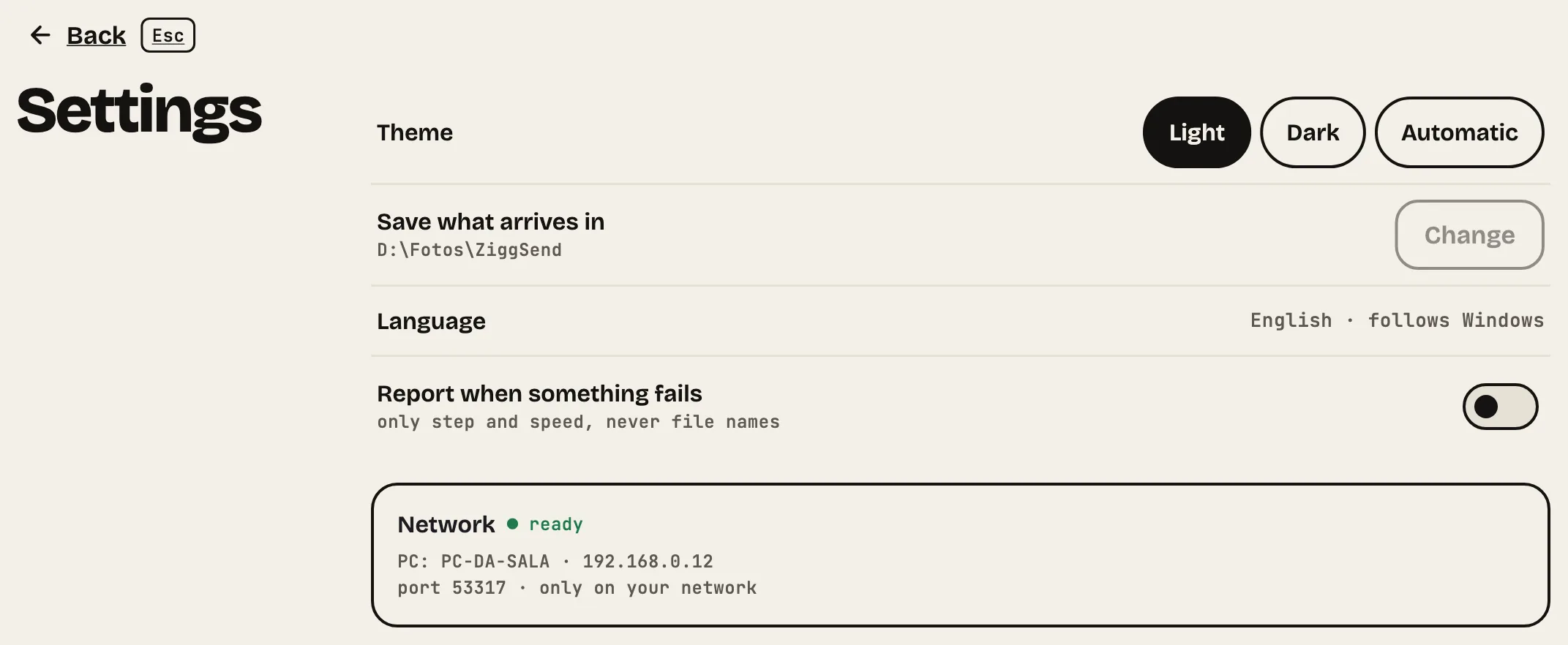
Settings
Theme, language and the folder where files land. “Change” moves it.
- Step 11
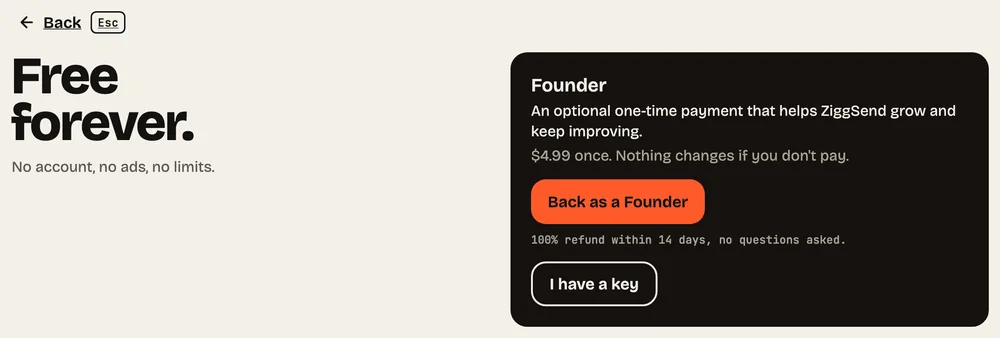
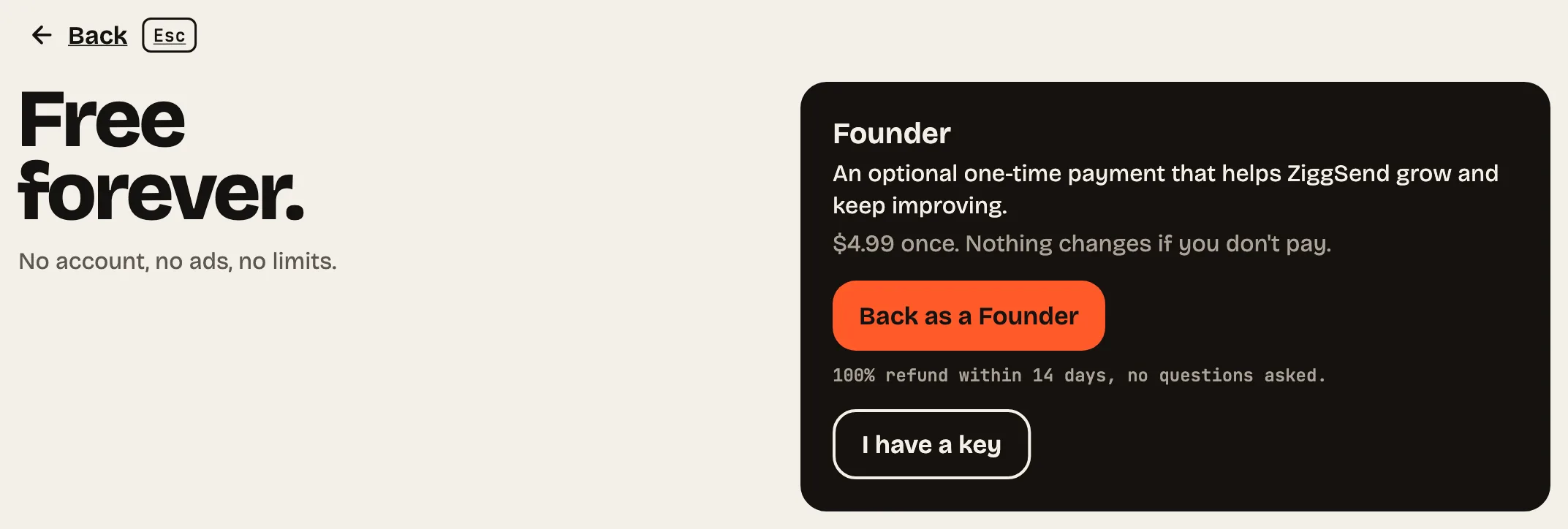
Free forever
Everything included, no time limit. Founder is optional, just to back us.
Want to help the project?
Founder: an optional one-time payment that helps ZiggSend grow and keep improving. $4.99 once. Nothing changes if you don't pay.
See how it works →Moving files, pair by pair
The full route from one device to the other, with what can go wrong.
How to transfer files from iPhone to PC →How to transfer files from Android to PC →How to transfer files from PC to iPhone →How to transfer files from PC to Android →How to transfer files from Windows to Mac →How to transfer files from Mac to Windows →