How to use ZiggSend on Mac
ZiggSend lives in the menu bar, next to the clock. Click the Z and the panel opens.
What you need
- Step 1
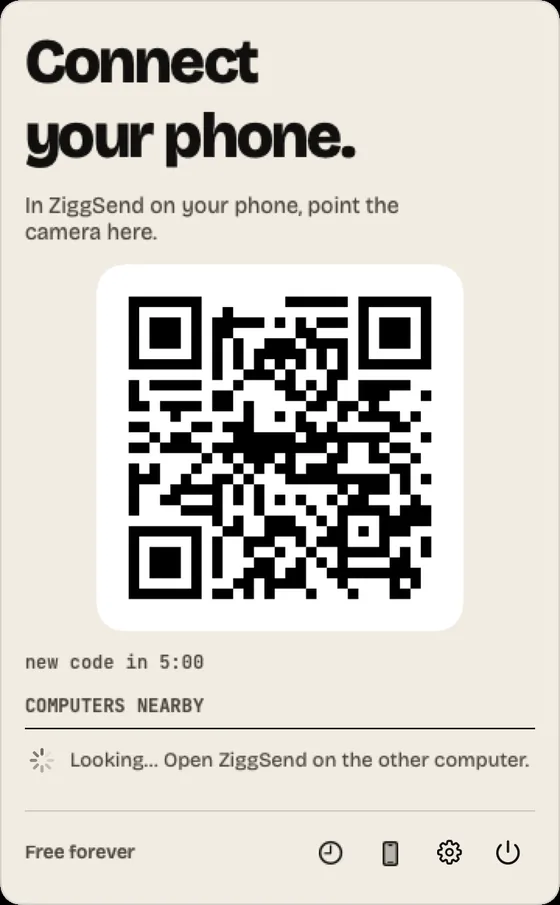
Open and connect
Install, click the Z in the menu bar and show the QR to your phone.
- Step 2
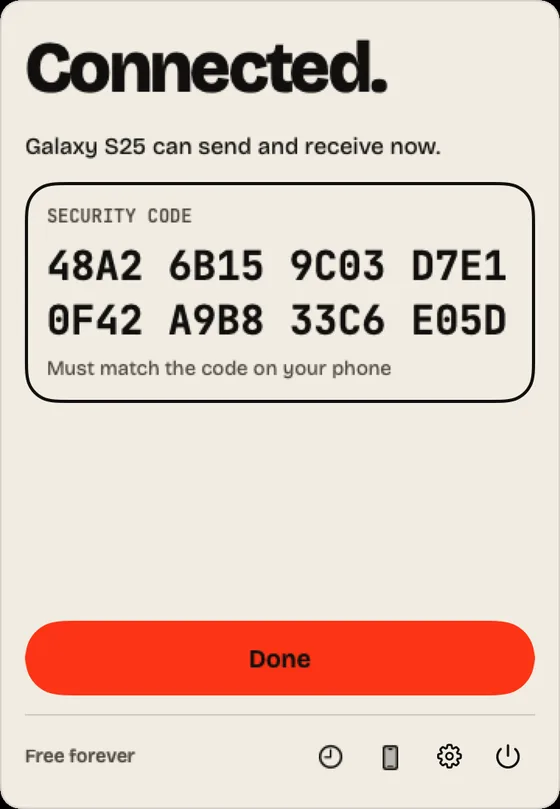
Connected
Check that the code matches the phone and click “Done”.
- Step 3
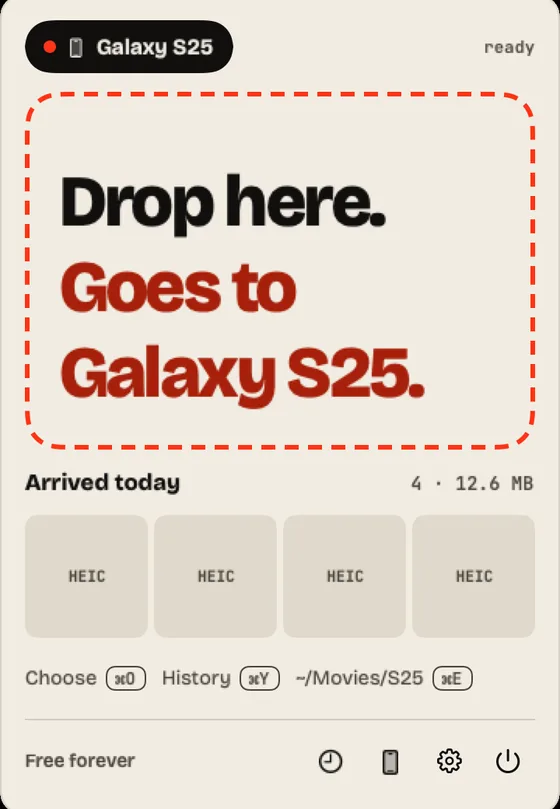
Drop to send
Drag files onto “Drop here.” or click “Choose”.
- Step 4
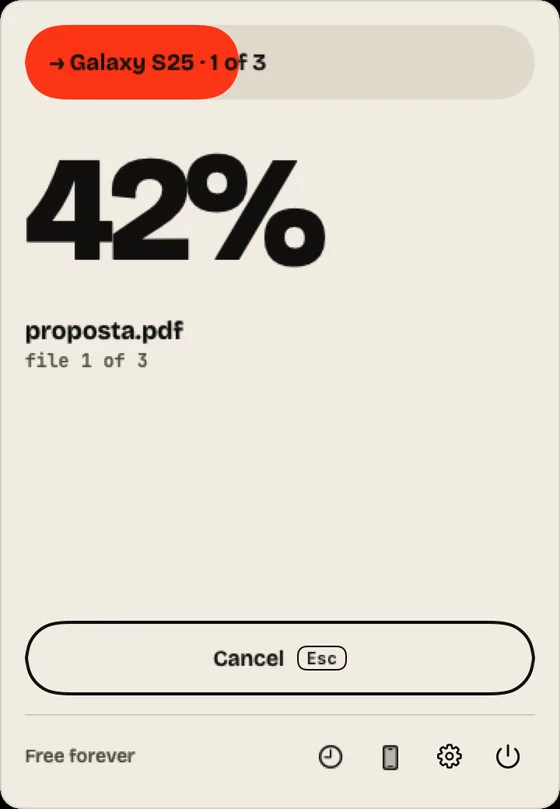
Watch it go
The panel shows the file and how much is left. “Cancel” stops it.
- Step 5
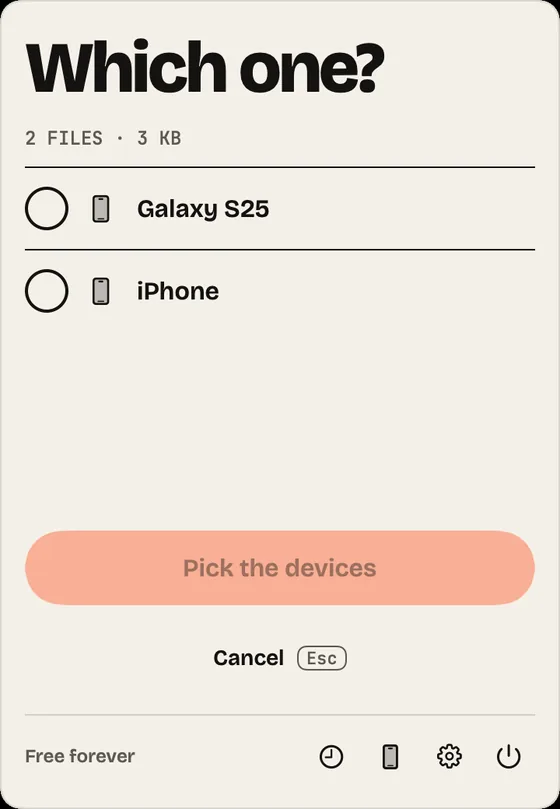
Several phones
With two or more phones, the panel asks “Which one?”. Pick and send.
- Step 6
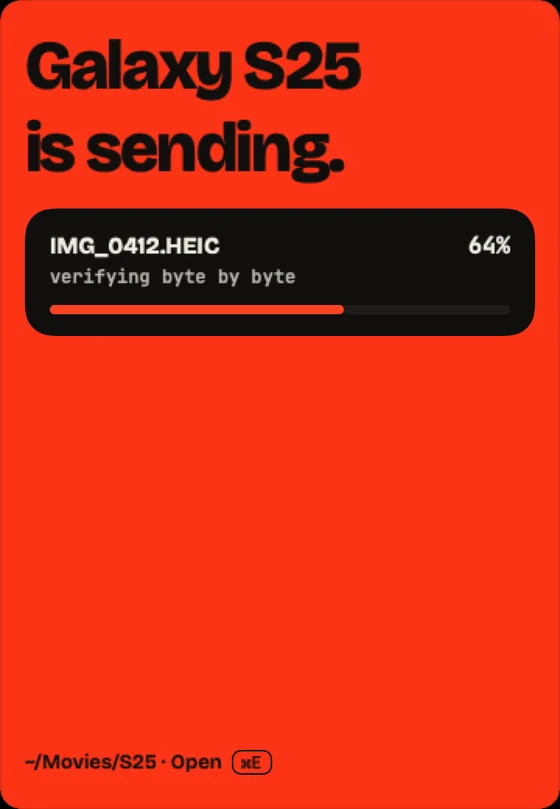
Receive from the phone
When the phone sends, the panel opens on its own and shows progress.
- Step 7
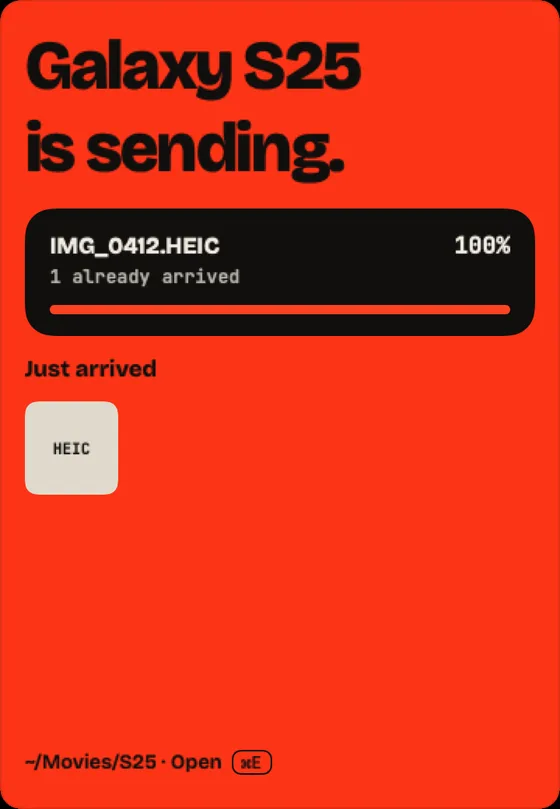
Arrived
What arrived shows under “Just arrived”. “Open” shows the folder.
- Step 8
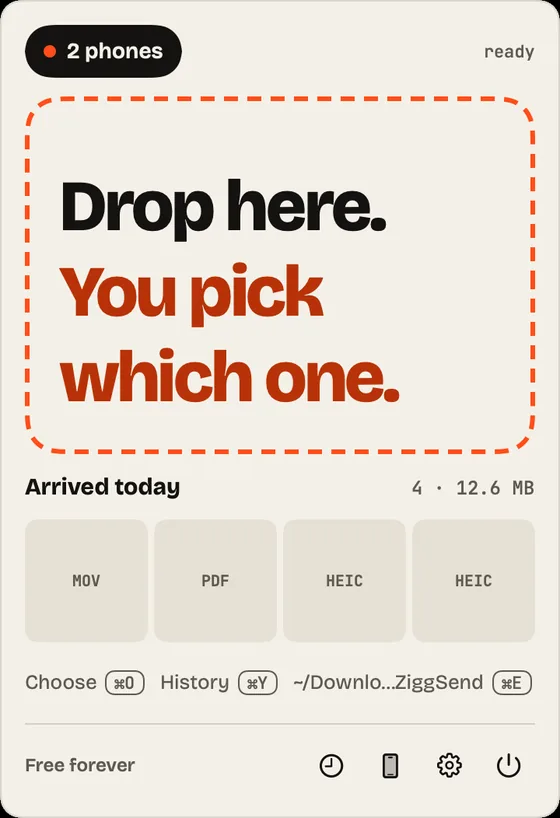
What arrived today
“Arrived today” lists the day’s files, with the folder below.
- Step 9
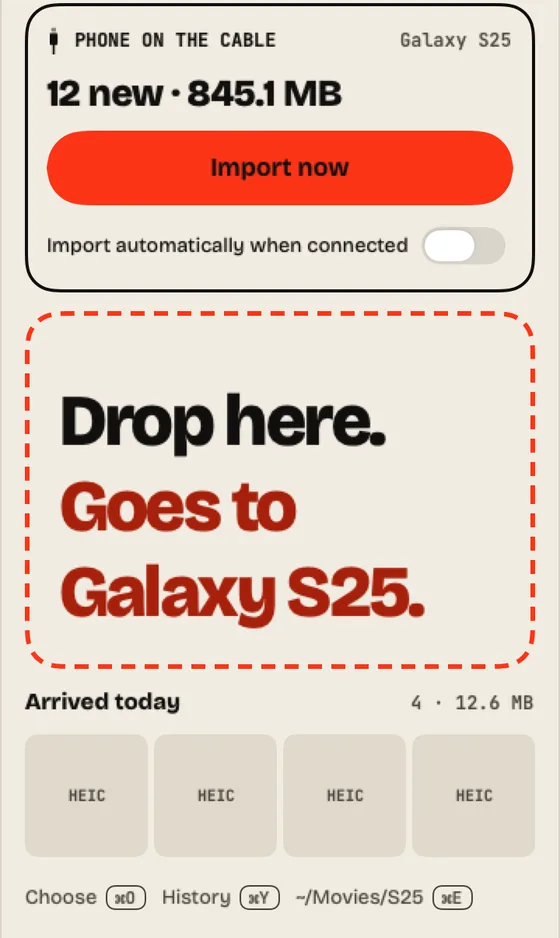
By cable (Android)
With the Android on the cable, click “Import now” to bring new files.
- Step 10
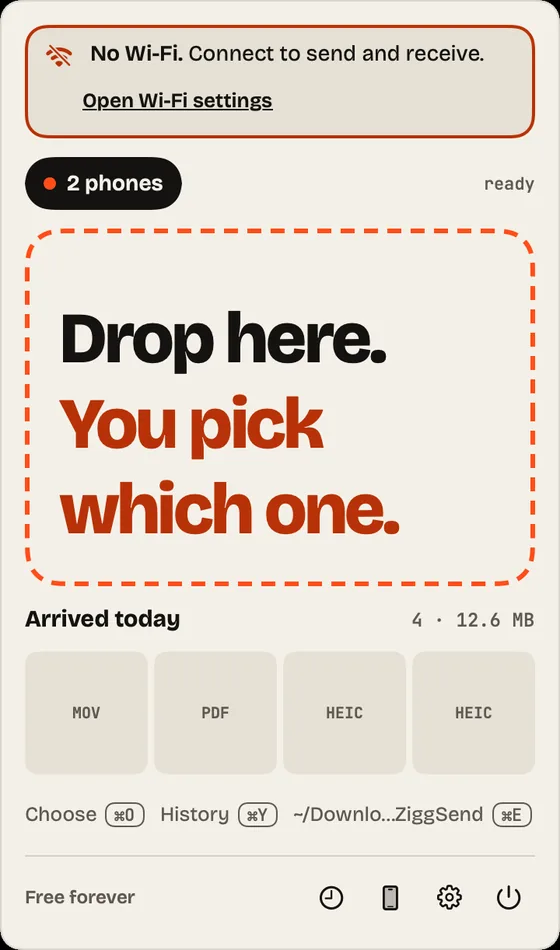
Wi-Fi notice
With no Wi-Fi, the panel says so at the top and opens Wi-Fi settings.
- Step 11
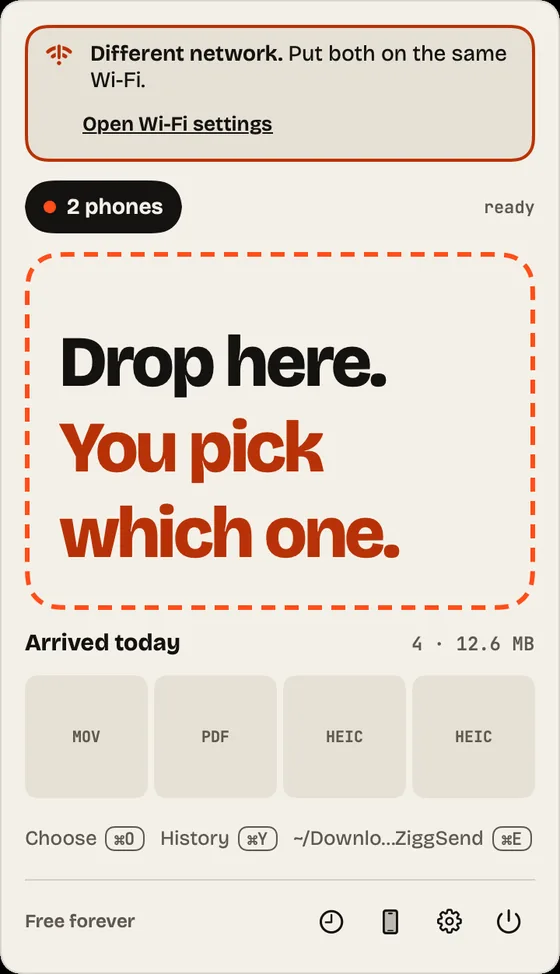
Different network
Mac and phone on different networks? Put both on the same Wi-Fi.
- Step 12
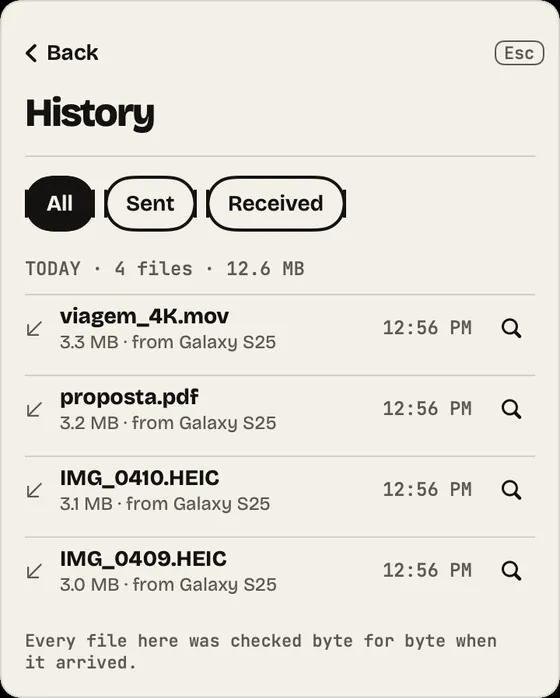
History
Everything in and out, checked byte for byte. Filter by Sent or Received.
- Step 13
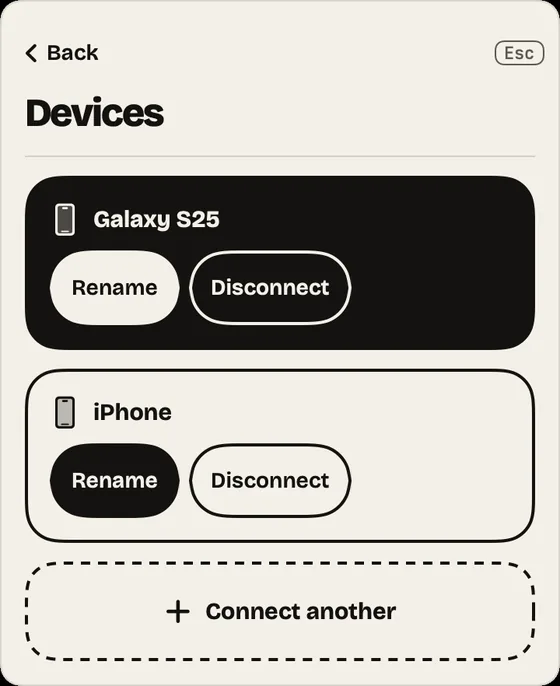
Devices
Rename, disconnect or connect another phone. No limit on devices.
- Step 14
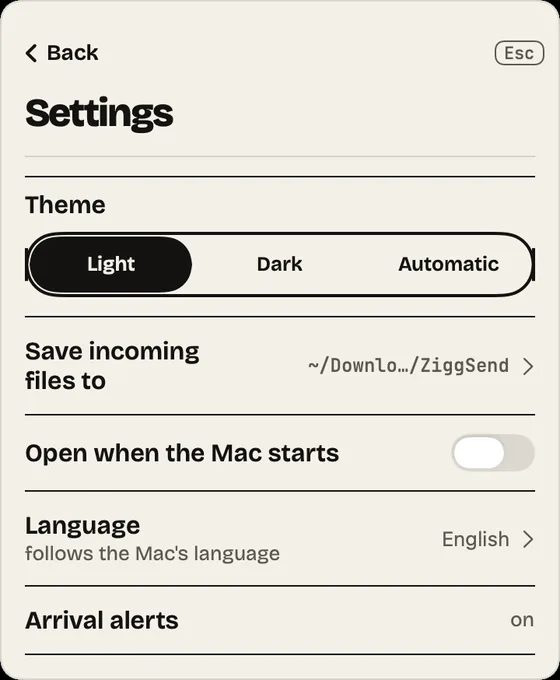
Settings
Pick the theme, the folder where files land and whether it opens at startup.
- Step 15
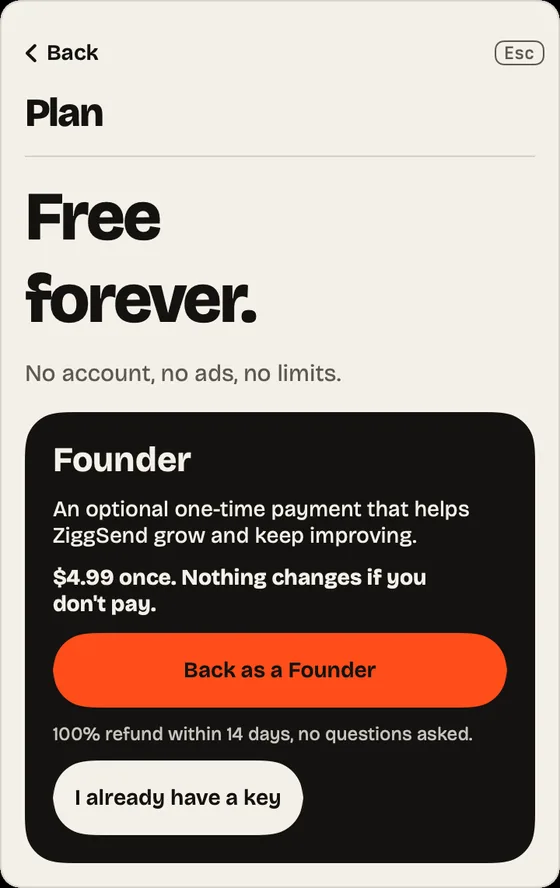
Free forever
Everything included, no time limit. Founder is optional, just to back us.


Want to help the project?
Founder: an optional one-time payment that helps ZiggSend grow and keep improving. $4.99 once. Nothing changes if you don't pay.
See how it works →Moving files, pair by pair
The full route from one device to the other, with what can go wrong.
How to transfer files from Android to Mac →How to transfer files from iPhone to Mac →How to transfer files from Mac to iPhone →How to transfer files from Mac to Android →How to transfer files from Windows to Mac →How to transfer files from Mac to Windows →